I recently asked an AI assistant a simple question:
Me: I'm looking for a Windows storage analyser that allows me to archive or delete duplicate, old or large files. Is there anything like that for Windows 11?
The answer was what you would probably expect.
It suggested several well-known Windows tools, including WizTree, TreeSize, FolderSizes and WinDirStat.
That was a fair answer. Windows already has some very good storage analysis tools. Some are fast, some are visual, and some are powerful enough for technical users who want detailed reports and manual control.
But my real concern was not just finding files.
It was safely acting on them.
So I asked a follow-up question.
Finding files is only half the problem
Me: I want to be able to recover files from the archive, so if I move something by mistake I can recover it. Do these apps do this?
The answer exposed the real gap.
AI: That is an important distinction. "Archive" in most of these tools usually means moving files to another folder or drive. It is not the same as a versioned or recoverable archive system.
WizTree and WinDirStat can help you find files and may allow deletion through the Recycle Bin, but they do not provide a built-in archive and recovery workflow.
TreeSize and FolderSizes can support moving or managing files, but recovery still depends on where you moved them, whether you kept that location, and whether you remember what was moved.
None of them really provide a full "recover from archive" workflow as part of the storage cleanup process.
That distinction matters.
A lot of tools are excellent at discovery. They can show you large folders, duplicate files, old files, file types, folder sizes and visual maps of your disk usage.
But once you decide to do something, the responsibility often shifts back to you.
Do you delete the files?
Do you move them somewhere else?
Do you trust the Recycle Bin?
Do you create your own archive folder?
Do you remember what you moved later?
That is where storage cleanup becomes risky.
The "do it all" question
So I asked the obvious question:
Me: Isn't there an app that does it all for me?
The AI suggested a few duplicate file tools that come closer, including tools that can send files to the Recycle Bin, back files up to a selected folder, or provide some form of restore option.
But the caveat was still the same.
AI: Most of these tools still rely on either the Recycle Bin or a backup folder you choose. That may be fine for many people, but it is not quite the same as a structured archive and recovery workflow.
That was the point I kept coming back to.
The problem is not whether Windows has storage analysers.
It does.
The problem is what happens after the scan.
Finding a large file is useful.
Finding a duplicate is useful.
Finding an old folder is useful.
But none of that automatically tells you whether it is safe to remove, archive or keep the file.
Asking about Zenovix Storage Manager
Then I asked about Zenovix Storage Manager.
Me: What about Zenovix Storage Manager?
The AI's answer was much closer to the workflow I had in mind.
AI: Zenovix Storage Manager sounds very relevant to what you are looking for. It helps you understand, review and clean up storage on your Windows PC. It can scan for duplicate files, similar files, large files, storage-heavy folders and empty folders.
Crucially, it includes archive and recovery workflows to help reduce the risk of accidental loss.
It gives you a review-first workflow so you can decide what to keep, archive, restore or remove before any cleanup action is applied.
That is the difference I care about.
Zenovix is not intended to be just another visual disk usage tool.
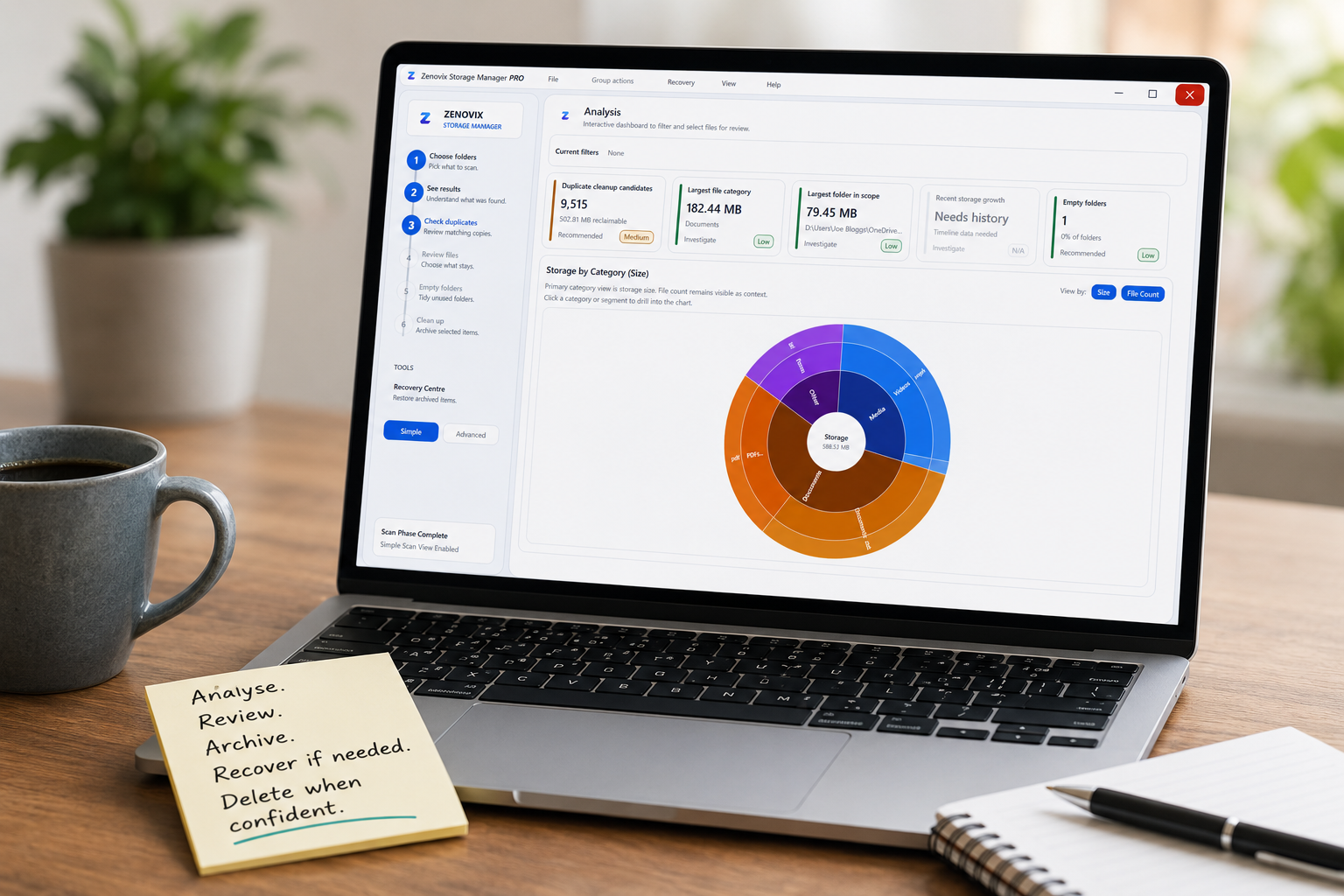
It is designed around the full decision process:
- Analyse first.
- Review carefully.
- Archive when you are unsure.
- Recover if needed.
- Delete only when confident.
That is a very different mindset from aggressive cleanup software.
Does Zenovix close the gap?
I asked the AI whether Zenovix does something the other tools do not.
Me: Does this do what the other applications don't?
The answer was balanced, which is important.
AI: Based on the available information, Zenovix appears to focus on a gap that many other apps either do not cover or treat more lightly.
Other tools often rely on the Recycle Bin, manual file moves, or separate backup locations.
Zenovix specifically presents archive and recovery as part of the built-in workflow, rather than something the user has to manage separately.
However, with any storage tool, it is still worth testing the workflow carefully before doing large cleanups.
That caveat is fair.
I do not think any storage software should encourage people to rush into deleting files. Your files matter, and cleanup tools should be careful with them.
That is why Zenovix is built around review-first action.
No cleanup workflow should pressure you into removing files before you understand what they are.
Looking at Zenovix in more detail
After looking at Zenovix in more detail, the AI summarised the distinction clearly.
AI: Zenovix is designed around a structured archive and recovery workflow. It can copy reviewed files into an archive location, verify the operation, and record archive details before further action is considered.
The Recovery Centre can inspect previous archive jobs, preview restore paths and recover selected files later.
It is review-first by design. Cleanup actions are not applied without explicit confirmation.
It also handles both exact and similar files, keeping lower-confidence similar matches separate because they need more context than exact duplicates.
Processing is local-only, with no cloud upload of scanned files, names, paths or scan results.
That summary gets to the heart of it.
This is not about saying other tools are bad. They are not.
Tools like WizTree, TreeSize, WinDirStat and FolderSizes are popular for good reasons. Some are extremely fast. Some are great for visualising disk usage. Some are excellent for technical users.
The difference is that Zenovix is focused on a slightly different question.
Not just:
Where has my storage gone?
But:
What can I safely do about it?
Why safe cleanup matters
Most people do not get into trouble because they cannot find a large file.
They get into trouble because they are not sure whether it is safe to remove it.
That matters when you are dealing with years of downloads, photos, videos, documents, installers, exports, backups and project folders.
A tool might tell you:
This folder is huge.
This file appears more than once.
These files are old.
These files look similar.
That information is helpful, but it does not automatically answer the more human question:
Can I safely get rid of this?
Sometimes the answer is yes.
Sometimes the answer is no.
Sometimes the safest answer is:
I am not sure yet, so I want to archive it first and recover it later if needed.
That is the gap Zenovix Storage Manager is trying to address.
Privacy matters too
Storage management is personal.
Your file names, folder paths, documents, photos, downloads and project folders can reveal a lot about you.
That is why Zenovix is designed around local processing.
The aim is to help you inspect and manage your storage without uploading your scanned files, file names, paths or scan results to a cloud service.
For a storage manager, that matters.
Final thought
The AI conversation started as a simple search for a Windows storage analyser.
But it exposed a bigger issue.
Windows does not lack storage tools.
It has plenty of analysers, visualisers and duplicate finders.
The real gap is between finding files and safely deciding what to do with them.
That is where Zenovix Storage Manager is intended to sit.
It is not trying to be the most aggressive cleaner.
It is trying to give users a safer way to understand their files, review them properly, archive before deleting, recover if needed, and only delete when they are ready.
For me, that is the difference between a storage analyser and a proper storage management workflow.
Learn more
Explore Zenovix Storage Manager
See how Zenovix helps Windows users analyse disk usage, review duplicates and use archive-first cleanup workflows when files should not be removed casually.