Analyse first
Cleaning up a Windows drive gets talked about like it is just a delete job. Find the biggest files, delete them, move on. That can work when you are clearing obvious rubbish like temporary files, old installers and downloads you know you do not need. It falls apart when the files are yours. Photos, videos, project folders, backups, documents and cloud sync folders deserve better than a fast delete.
The first step is not deleting. It is understanding what is actually taking up the space. A full drive is a symptom, not an explanation. It might be a Downloads folder full of old installers, massive screen recordings, forgotten ZIP exports, duplicate photos copied between OneDrive, iCloud and a local folder, or a backup folder that looks messy but is still important.
Until you know what is there, you are guessing. That is why Zenovix is built around scanning and analysis before action. The point is not to say your drive is full. You already know that. The useful part is seeing where the space has gone, which folders matter, which file types are taking over, where the large files are and whether duplicates exist.
A storage scan should give you context before it gives you a delete button.
Keep the scan scope sensible
It is tempting to point a tool at the whole drive and hope it sorts everything out. Sometimes that is useful, but for careful cleanup, focused scans are usually better.
Start with the places where clutter actually builds up: Downloads, Desktop, Documents, Pictures, Videos, old project folders, export folders, cloud sync folders, external drives and archive folders.
Be very cautious with Windows system folders, Program Files, AppData and application folders unless you know exactly what you are looking at. It is not worth breaking an app or Windows itself because a folder looked big.
The best cleanup jobs usually start smaller. Pick a folder that is annoying you. Scan it, understand it, review it, then move on to the next one.
Review before action
This is the part I care about most. Finding files is not the same as reviewing them. A large file is not automatically waste. An old file is not automatically useless. A duplicate is not automatically safe to delete, and a similar file definitely is not.
Before removing anything, ask: can I open it, do I recognise it, is it the only copy, is it part of a project, is it synced from somewhere else, and would I be annoyed if it vanished? That last question is usually the honest one. If the answer is yes, or even maybe, permanent delete should not be the first move.
Zenovix uses review states like Keep, Clean up and Unreviewed so the decision stays visible before anything runs. That sounds basic, but it matters. A cleanup tool should not blur the line between finding something and removing it. Those are two different stages.
Exact duplicates and similar files are different jobs
Exact duplicates are usually the clearest wins. If two files have the same content, there is a good chance you only need one of them. But context still matters. The same photo might exist in the right album and in a random import folder. The same document might live in the project folder that explains what it belongs to. So the question is not just whether the files are identical. It is which copy you actually want to keep.
Similar files need even more care. A similar photo is not always a duplicate. A similar document might be an older draft, a similar video a different export, a similar archive different contents entirely.
That is why Zenovix keeps similar-file matching separate from exact duplicate review. Exact matches are strong evidence. Similar files are a prompt to look closer. Mixing them together as if they were the same thing is how good files get deleted.
Archive when you are unsure
This is the step that gets ignored too often. Not every cleanup decision needs to end in delete. Archiving is useful when you are fairly sure you do not need something in your working folders, but you are not ready to remove it permanently.
Old projects are a good example. They do not need to sit in your Documents folder forever, but they do not deserve deletion just because they are no longer active. The same goes for old photos, exports, backups and downloaded documents. Moving them into an archive gets them out of the way without forcing a final decision too early.
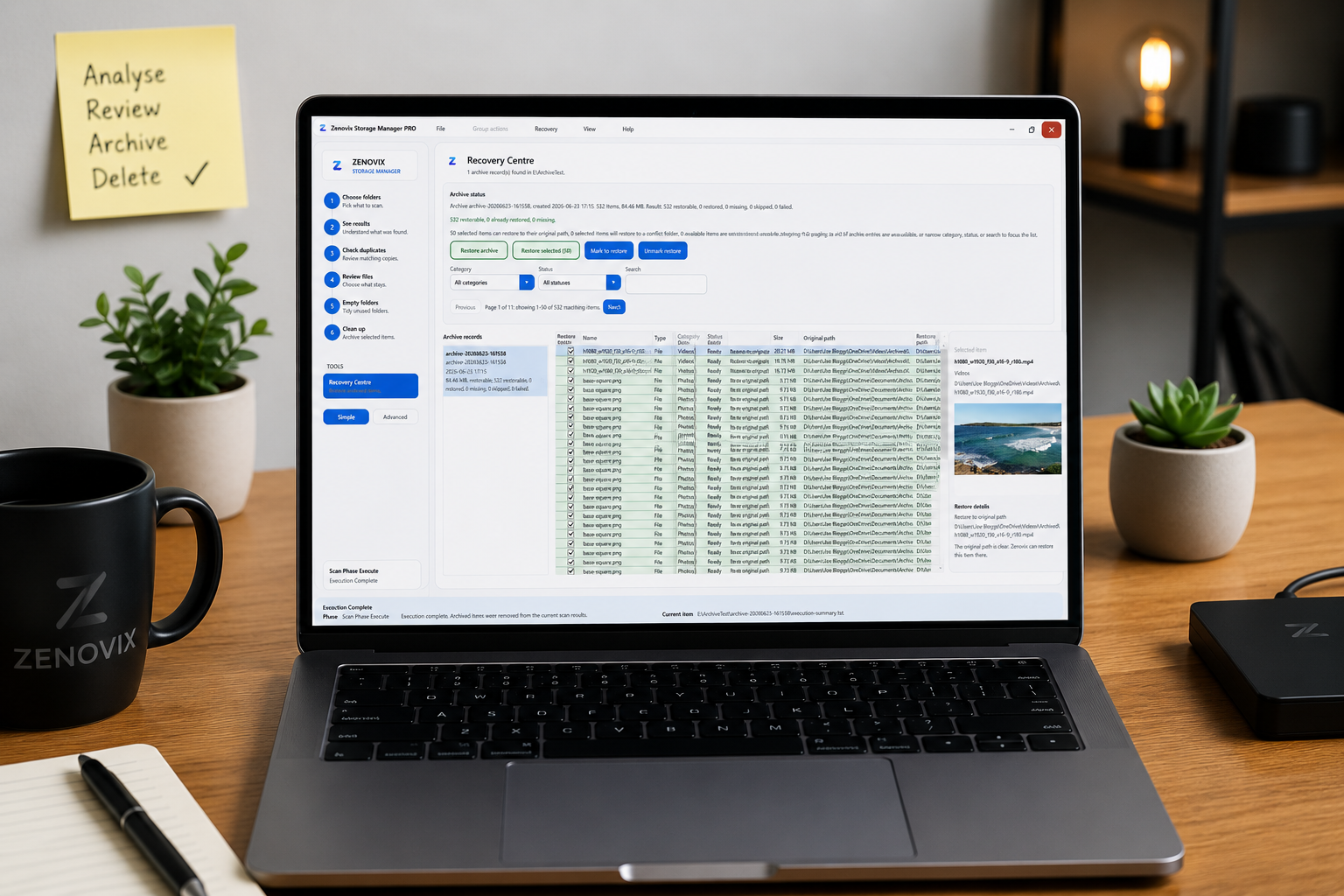
With Zenovix Pro, Archive is the route that gives Zenovix its own recovery record. Reviewed files are copied into the archive location, checked, removed from the original location and recorded so the Recovery Centre can inspect and restore them later.
That is not the same thing as a full backup strategy. If your archive lives on an external drive, cloud folder or another disk, that location still needs its own protection. But as a cleanup workflow, archive is a much calmer first move than permanent delete.
Delete when the decision is clear
Deleting still has its place. Some files are rubbish, some duplicates are obvious, some downloads were only useful once. When you know that, deleting is fine.
The important thing is knowing which type of delete you are choosing. Sending reviewed files to the Recycle Bin keeps the Windows recovery route, but it depends on Windows and available Recycle Bin capacity. Archiving through Zenovix Pro gives you the Recovery Centre route, but only for items processed through the archive workflow. Permanent delete should be treated as final.
That is the blunt version, but it is the honest one. No storage tool should make permanent delete sound safer than it is.
The workflow I recommend
Start with one folder or drive area that is actually causing a problem. Run a scan. Look at the large folders, large files, file types and duplicate candidates.
Review exact duplicates first, because they are usually the clearest wins. Look at similar files separately and more slowly. Mark what you want to keep, and mark cleanup candidates only when you are confident. Archive anything you are unsure about.
Use the Recycle Bin for reviewed files where Windows recovery is enough. Use permanent delete only when you accept that Zenovix is not creating a recovery path for those files.
Then read the result before starting another pass. If anything was skipped, failed, locked, missing or inaccessible, do not ignore it and keep going. Storage cleanup should leave you with more control, not just less data.
Where Zenovix fits
Zenovix is not trying to be every Windows storage tool. If you only want a very fast view of your biggest folders, WizTree may be a better fit. TreeSize is a strong classic folder size analyser. WinDirStat is well known for its treemap, and Storage Sense may be enough if you only want to clear common Windows clutter.
Zenovix is aimed at a different job. It is for when you want to work through your own files with more context. Analyse the storage, review the files, decide what to keep, archive where you are unsure and delete only when the decision is clear.
The best Windows storage cleanup workflow is not the fastest one. It is the one that helps you free up space without making a mess of your own files. It is a slower mindset, but I think it is the right one. Freeing up disk space is useful. Losing something important is not.
FAQ
What is the safest way to clean up storage on Windows?
Analyse your storage first, review the files manually, archive anything uncertain and only delete files when you understand what they are and accept the recovery limits.
Is it safe to delete duplicate files on Windows?
It can be safe to remove exact duplicate copies after review, but you should still check the folder path, filename, quality and context before deleting anything. Similar files need even more care because they may be different versions rather than true duplicates.
Should I archive files before deleting them?
Archiving is a good option when you are fairly sure you do not need files in your working folders, but you are not ready to permanently delete them. It gives you time to decide later.
What is the difference between Recycle Bin, Archive and permanent delete in Zenovix?
Recycle Bin sends reviewed items to the Windows Recycle Bin and recovery depends on Windows. Archive is a Zenovix Pro workflow that creates a Zenovix recovery record for archived items. Permanent delete is user confirmed, creates no Zenovix recovery record and should be treated as final.
Does Fast Scan find duplicate files?
Fast Scan is for a quicker storage overview, such as storage usage, file types, large files and empty folders. Run a full analysis scan when you need exact duplicate matching, similar-file matching or deeper review results.
Review-first cleanup
Use Zenovix to work through storage decisions carefully
Zenovix Storage Manager helps Windows users analyse selected folders, review large files and duplicates, archive before delete, and keep cleanup decisions under their control.