How to read this guide
When a Windows drive fills up, most people end up staring at a folder or a file with a strange name, asking the same question: is it safe to delete this? Windows.old, hiberfil.sys, that huge WinSxS folder, the Temp folder, the Downloads pile. Some of these are genuinely safe to clear. Some should never be deleted by hand. And some depend entirely on what the file actually is.
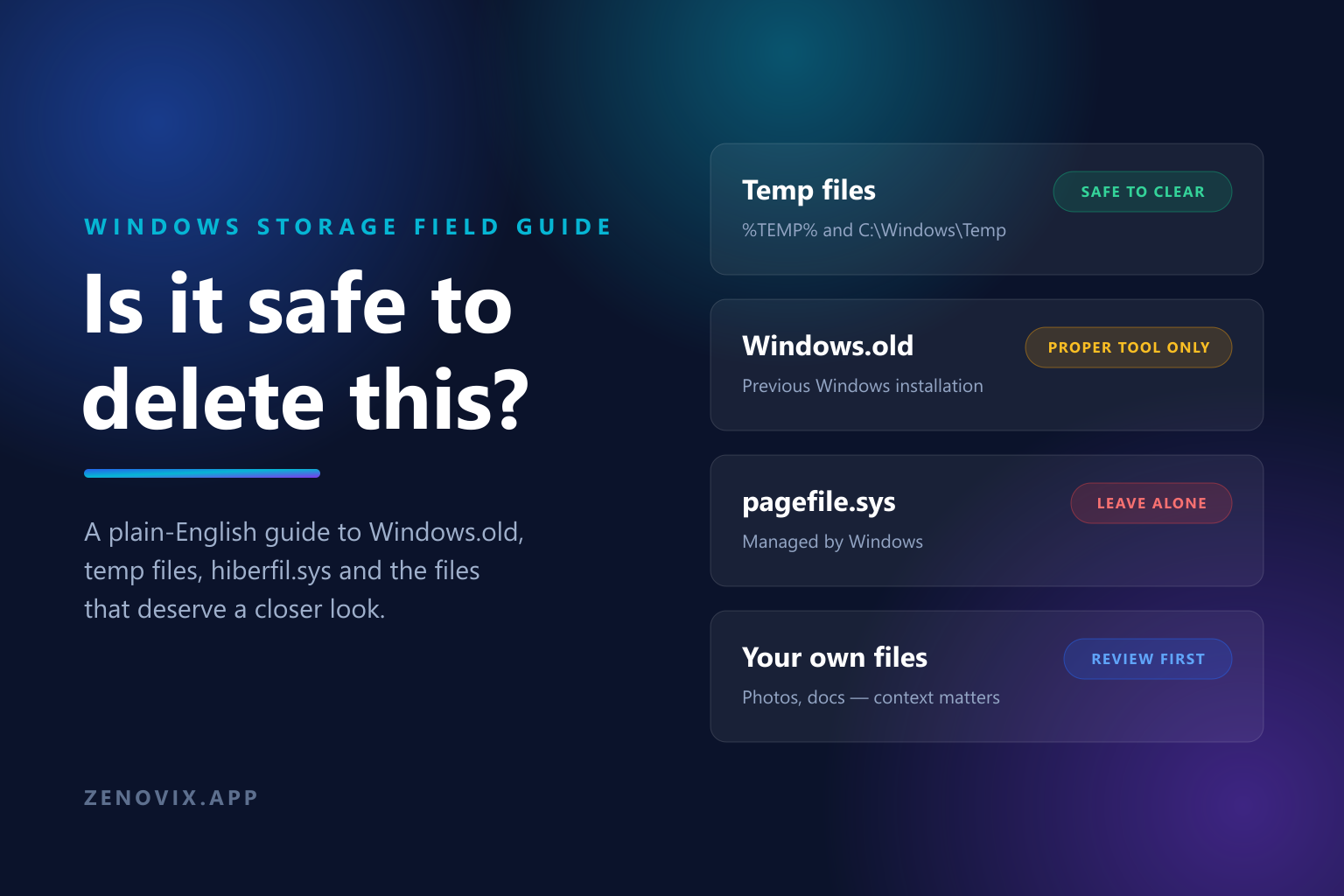
This is a field guide to the items people most often want to remove. For each one it gives a plain answer: clear it, use the proper tool, leave it alone, or review it first. The theme running through all of it is simple. The safe move is almost never a manual delete of something you do not recognise. It is either letting Windows remove it the supported way, or looking closely before you decide.
One rule holds for everything below. If a file belongs to Windows or to an installed program, let the operating system or the app manage it. If a file is yours, the answer is never automatic, and that is where a review-first tool earns its place.
Usually safe to clear
Temporary files are the clearest win. The per-user Temp folder at %TEMP% and the system one at C:\Windows\Temp hold scratch data that apps and installers leave behind. Windows and well-behaved programs do not rely on old temp files surviving, so clearing them is low risk. The supported route is Storage settings or Disk Cleanup rather than hand-deleting individual files, because a few may be locked by a running app and are simply skipped.
The Recycle Bin is safe to empty once you have checked what is in it, but remember that emptying it removes the Windows recovery route for those items. The thumbnail cache and temporary internet files rebuild themselves automatically. Delivery Optimization files, which are downloaded Windows Update pieces shared on your network, can be cleared through the same tools without harm.
Downloads is the honest grey area in this group. The folder is often full of one-time installers and old ZIP files that are safe to remove, but it is also where people accidentally keep the only copy of an invoice, a contract or a photo someone sent them. Treat Downloads as a review job, not a bulk delete.
Safe to remove, but only with the proper tool
Windows.old is the folder created when you upgrade or reinstall Windows. It holds your previous installation so you can roll back, and it can easily be 10 to 30 GB. Once you are sure the new version is working and you will not need to go back, it is safe to remove, but you should let Windows do it through Storage settings or Disk Cleanup. Deleting it by hand in File Explorer runs into permission and ownership problems and can leave the folder half-removed.
The WinSxS folder inside C:\Windows is the one that alarms people most, because it looks enormous. Do not delete it, and do not delete anything inside it. WinSxS holds the component store Windows uses for updates, features and rollbacks, and manual deletion can stop the system from updating or booting. Its real size on disk is also smaller than File Explorer suggests, because many entries are hard links counted more than once.
If WinSxS genuinely needs shrinking, the supported tools do it safely: Disk Cleanup with the system files option, or DISM with the /Cleanup-Image /StartComponentCleanup switch for advanced users. Windows also runs a scheduled task that trims old components on its own during idle time, so for most people no manual action is needed at all.
Leave these alone
hiberfil.sys is the hibernation file, and it is usually large because it is sized to your RAM. You cannot meaningfully delete it while hibernation is on, and hand-deleting it is the wrong approach. If you never hibernate and want the space back, disable the feature with powercfg -h off from an elevated command prompt, which removes the file the supported way. The trade-off is that Fast Startup also depends on this file, so boot times may increase.
pagefile.sys is virtual memory that Windows manages for you. Do not delete it. It can be moved or resized through the system performance settings if you are genuinely short on space, but turning it off or shrinking it too far can cause low-memory errors and application crashes. swapfile.sys is a small related file used for modern apps and follows the same rule: leave it to Windows.
The same caution applies to Program Files, the wider C:\Windows tree and most of AppData. A folder being large is not a reason to delete it. Removing program or system folders by hand is how a working install gets broken. If you want an application gone, uninstall it properly instead of deleting its folder.
Review first: your own files
This is the category with no fixed answer, and it is the one that actually matters most. Photos, videos, documents, project folders, exports, backups and cloud sync folders cannot be judged by name, size or age. A 4 GB file might be an irreplaceable video or a scratch export you forgot to delete. Only context tells you which.
A large file is not automatically waste. An old file is not automatically useless. A duplicate is not automatically safe to remove, and a similar file is not a duplicate at all. Before deleting anything of your own, the useful questions are whether you can open it, whether it is the only copy, whether it is part of something larger, whether it is synced from elsewhere, and whether you would mind if it vanished. If the answer to that last one is yes or even maybe, permanent delete should not be the first move.
This is exactly the gap Zenovix Storage Manager is built for. It analyses selected folders so you can see where the space has gone, keeps exact duplicates and similar files as separate review jobs rather than lumping them together, and uses review states so finding a file and removing it stay two different steps. When you are unsure, the Zenovix Pro archive workflow moves an item out of the way and records it in the Recovery Centre, so you are not forced into a permanent decision before you are ready.
The quick reference
Safe to clear with Disk Cleanup or Storage settings: temporary files, the thumbnail cache, temporary internet files, Delivery Optimization files, and the Recycle Bin once checked.
Safe to remove but only through the proper tool: Windows.old through Storage settings or Disk Cleanup, and WinSxS shrinking through Disk Cleanup or DISM, never a manual delete.
Leave alone: pagefile.sys, swapfile.sys, hiberfil.sys (disable through powercfg if you want the space), and the Program Files, Windows and AppData folders.
Review first, with no automatic answer: your own photos, videos, documents, downloads, project folders, exports, backups and cloud sync folders. When in doubt, archive rather than delete.
FAQ
Is it safe to delete the Windows.old folder?
Yes, once you are sure the new Windows version is working and you will not need to roll back. Remove it through Storage settings or Disk Cleanup rather than deleting it by hand in File Explorer, which runs into permission problems. Windows also removes it automatically after about ten days.
Can I delete the WinSxS folder to free up space?
No. Do not delete WinSxS or anything inside it, because Windows uses it for updates and rollbacks and manual deletion can break the system. If it needs shrinking, use Disk Cleanup with the system files option or the DISM /Cleanup-Image /StartComponentCleanup command. Its size on disk is also smaller than File Explorer shows because of hard links.
Is it safe to delete hiberfil.sys and pagefile.sys?
Do not hand-delete either. pagefile.sys is virtual memory managed by Windows and removing it can cause low-memory errors. hiberfil.sys is the hibernation file; if you never hibernate, remove it the supported way by running powercfg -h off from an elevated prompt, which also disables Fast Startup.
Is it safe to delete everything in the Temp folder?
Clearing the Temp folders at %TEMP% and C:\Windows\Temp is generally safe because apps do not rely on old temporary files. Use Disk Cleanup or Storage settings so that any files currently in use are simply skipped rather than forced.
How do I know if a file is safe to delete on Windows?
If the file belongs to Windows or an installed program, let the operating system or app manage it and use the built-in cleanup tools. If the file is your own, there is no automatic answer: check whether you can open it, whether it is the only copy and whether it is synced elsewhere, and archive it rather than deleting if you are unsure.
Review-first cleanup
For the files only you can judge, review before you delete
Zenovix Storage Manager helps Windows users analyse selected folders, review large files and duplicates, archive before delete, and keep cleanup decisions under their control.