Windows storage manager
Zenovix Storage Manager
Zenovix is for people who want to act on storage problems without rushing into deletion. It helps you scan selected folders, explore storage through interactive dashboards, save progress, review duplicates within the current filter context, archive selected items and restore archived files later.

Common uses
Built for storage reviews that need time and context.
What it does
Clear answers and controlled actions for crowded drives.
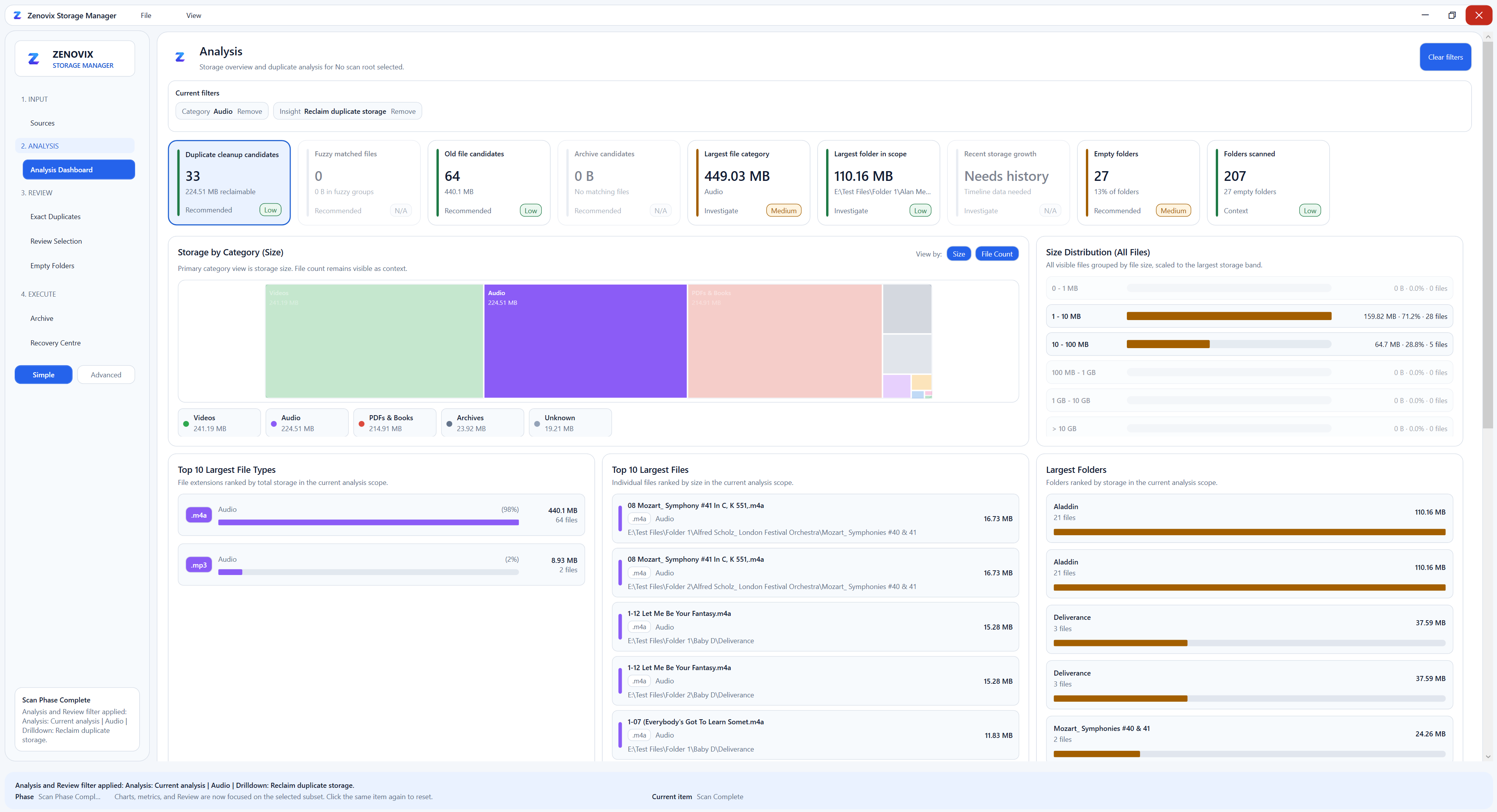
Zenovix is built for Windows users who want to understand their storage before they act. Interactive storage dashboards help you explore files visually: click categories, folders, file types, size bands and other dashboard elements to filter the entire analysis view. Your selected scope follows you into review so archive, recycle, delete and duplicate removal decisions can be reviewed carefully.
- Analyse disk usage across selected folders and drives.
- Use interactive dashboard filtering to click categories, folders, file types, size bands and cleanup candidates, or hold Ctrl while clicking to combine filters.
- Keep a persistent analysis scope as you move from analysis to review.
- Explore files visually with linked dashboard views before deciding what to archive, recycle or delete.
- Find large files, duplicate candidates and old storage-heavy items.
- Save scan results and load them later to continue large reviews.
- Generate CSV reports showing the review status of each scanned file.
- Remove duplicates only after reviewing evidence and confirming the selection.
- Archive, recycle or delete reviewed items with clear recovery limits.
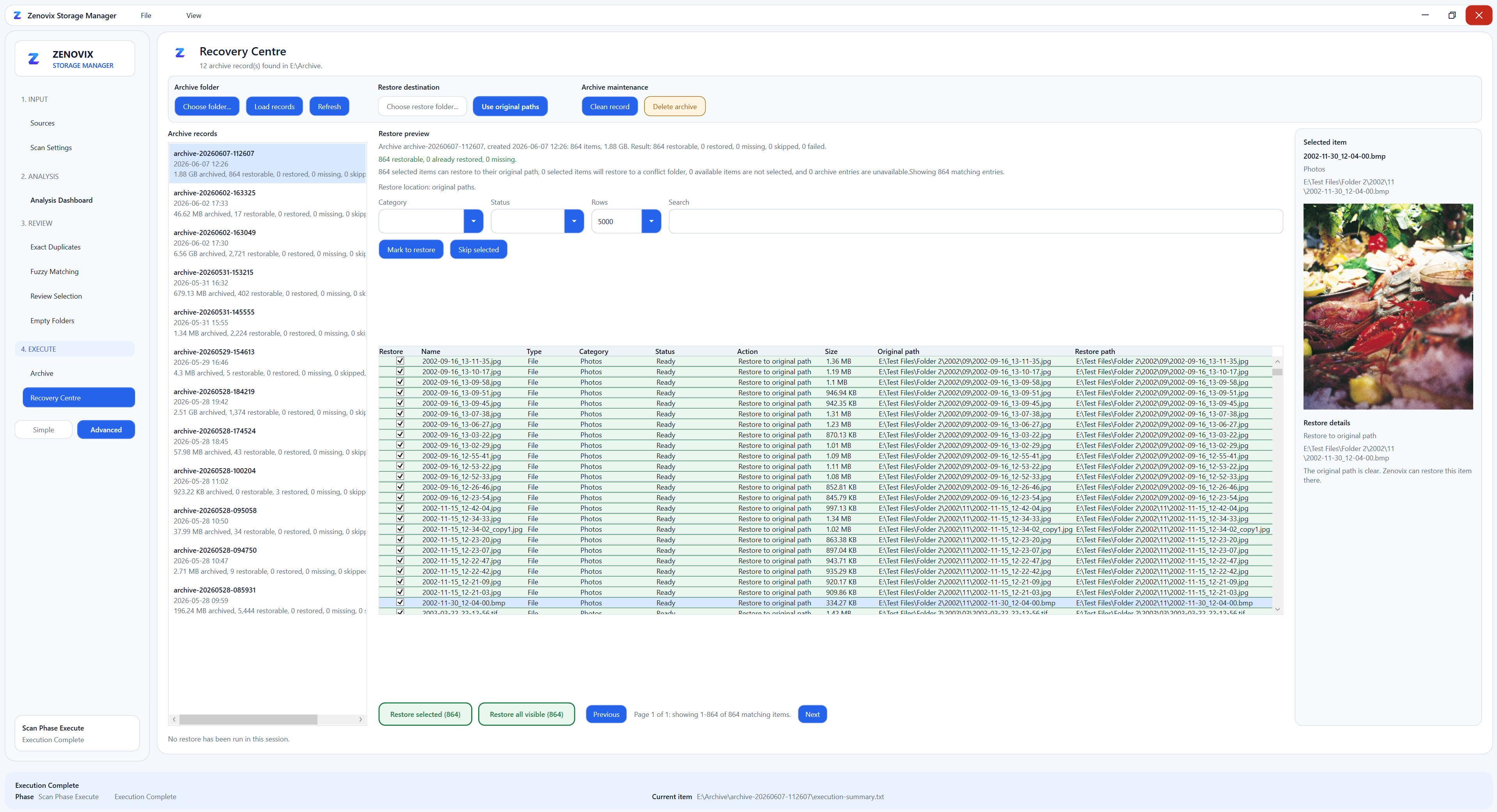
- Use manifest-backed archive records for Recovery Centre restore workflows.
- Understand what is taking up space without uploading your files.
Where Zenovix fits
More than analysis. Calmer than a PC cleaner.
Zenovix occupies the middle ground for careful Windows users: enough power to remove duplicates and clean up storage, with enough review continuity, reporting and recovery context to keep the user in charge.
Not just a folder size viewer
Zenovix does more than show where space went. Interactive dashboard visuals help users cross filter scan results, keep a persistent analysis scope and move from storage analysis to saved review sessions, duplicate removal, archive, recycle or delete actions.
Not automatic cleaning
Zenovix does not take over file decisions. It surfaces evidence, separates confidence levels and waits for user confirmation before files are archived, recycled or deleted.
A careful Windows storage manager
The niche is controlled cleanup: practical action for crowded drives, with local processing, saved scan results, CSV review reports, SHA-256 duplicate detection and Recovery Centre restore paths.
Safety loop
Scan, review, archive or delete, verify, recover.
The workflow is designed around review before action. Permanent delete is available when you choose it, but archive and Recovery Centre records provide the clearer recovery path for reviewed files.
- Scan selected folders and drives.
- Review storage analysis and duplicate evidence.
- Archive, recycle or delete confirmed items.
- Verify archive outcomes and skipped files.
- Recover archived items from the Recovery Centre if needed.
Local processing
Storage analysis happens on your device.
Zenovix scans selected local folders and drives on Windows. The privacy policy states that scanned file contents, file names, folder paths and scan results are not uploaded to the developer.
Microsoft Store
Available on the Microsoft Store
Install Zenovix Storage Manager from the public Microsoft Store listing, or open the listing directly in the Store app on Windows.

Support and privacy
Need help or privacy details?
For support enquiries, use the support form. The user manual explains the full scan, review, cleanup and recovery workflow, and the FAQ answers common setup questions. Zenovix explains local file access, storage and user control in the privacy policy.
Common questions
Storage Manager FAQ
For more questions about scanning, matching, cleanup and recovery, visit the full FAQ.
What is Zenovix Storage Manager?
Zenovix Storage Manager is a privacy-first Windows storage manager for storage analysis, duplicate detection and user-controlled cleanup.
What does it help me find?
It helps you analyse disk usage, find large files, review duplicate candidates, save large scan sessions and decide whether to archive, recycle or delete selected items.
Can I filter my files by clicking the dashboard visuals?
Yes. Zenovix Storage Manager includes interactive dashboard filtering. Click a category, folder, file type, size band, cleanup candidate or other supported visual element to apply it as part of the current analysis scope. Hold Ctrl while clicking additional visuals to combine filters, such as duplicate cleanup candidates plus Audio.
Do dashboard filters also affect review?
Yes. Filters applied during analysis are preserved as you move into review, helping you focus only on the files inside the scope you intended to investigate.
Is Zenovix Storage Manager available on the Microsoft Store?
Yes. Zenovix Storage Manager is available from the Microsoft Store.
How do I contact support?
Use the support form on the Zenovix website to contact support.