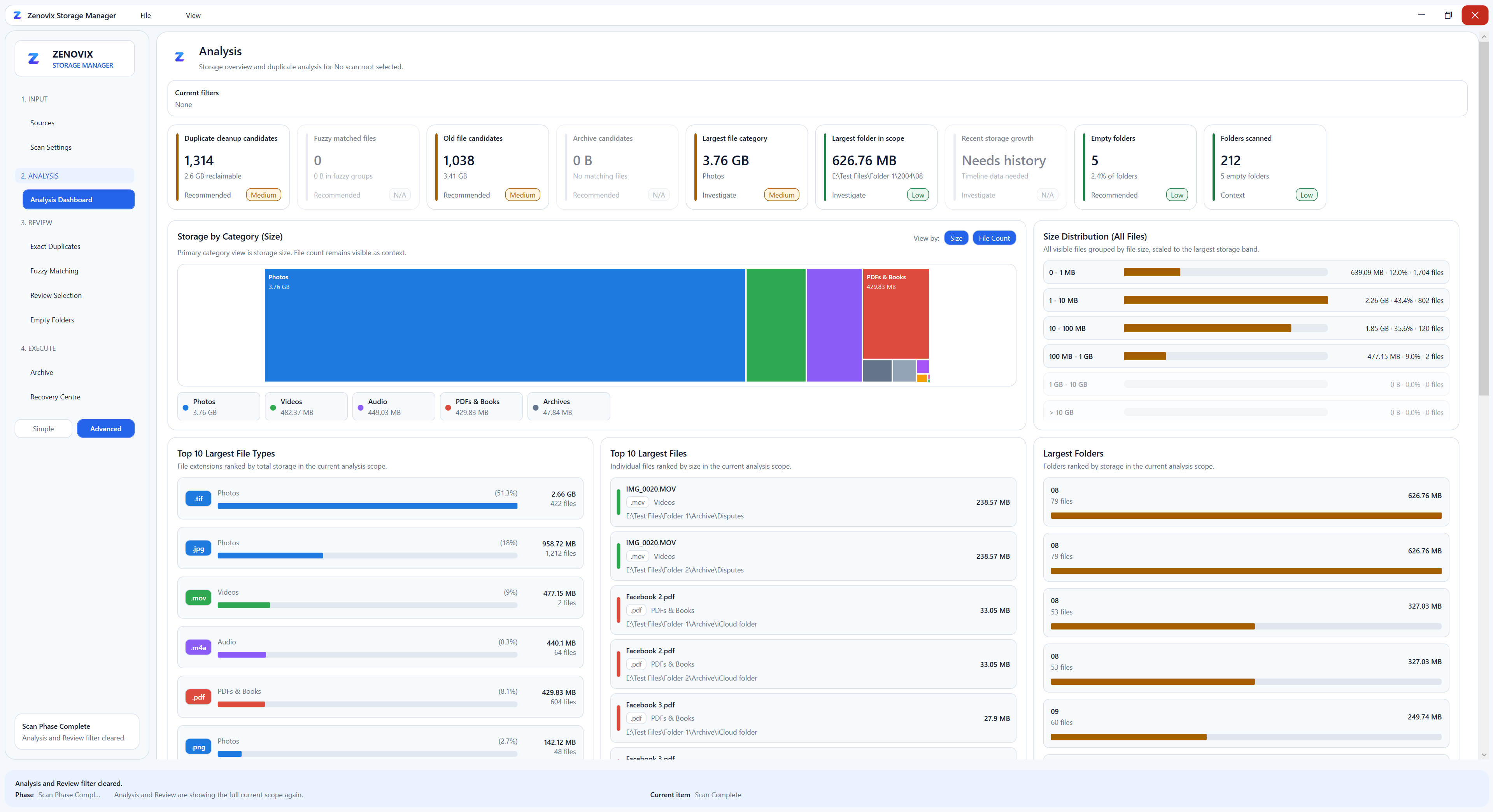
There are already some excellent tools that help you see where disk space is being used. Many of them are very fast, very visual, and very good at answering the first question most people have when a drive starts filling up:
What is using my storage?
Zenovix Storage Manager was built because I wanted something with a slightly different focus.
I did not just want to see where my storage had gone. I wanted a more controlled way to review files, compare duplicates, keep the right version, archive things before deleting them, and have a route back if I changed my mind.
That became the aim for Zenovix Storage Manager.
Why I built it
I knew I had built up a lot of duplicate photos, documents and other files over the years. That part was not really a surprise.
The bigger problem was what to do with them once they had been found.
A big part of this came from having files in iCloud that were also replicated from my iPhone into OneDrive. Because of that, I ended up with two copies of a lot of files.
In some cases, I wanted to keep the higher quality photo rather than smaller copies that had ended up dotted around the place because I had missed a setting somewhere.
That is the kind of problem I wanted Zenovix Storage Manager to help with.
Seeing the problem is not always enough
Traditional disk usage tools are very useful when you want to understand where your storage is going.
But for me, that was only part of the problem.
Once I know a folder is large, or that I have repeated files, I still need to decide what to do with them.
Should I delete them?
Should I archive them?
Should I leave them alone?
Should I keep the larger or higher quality version?
Should I come back to them later?
That is the part Zenovix Storage Manager is focused on.
It is less about simply showing that storage is being used, and more about helping you work through the cleanup process carefully.
Review first, then act
Zenovix Storage Manager is not meant to be an aggressive one-click cleaner.
I do not really like that approach for personal files. It is too easy to remove something and only realise later that you still needed it.
The workflow in Zenovix Storage Manager is closer to:
Scan -> Review -> Archive or Delete -> Verify -> Recover if needed
The point is to show you what has been found, then let you decide what happens next.
Sometimes deleting is the right answer. Sometimes archiving is better. Sometimes the right answer is to leave the file alone.
The application is built around that decision-making process.
Duplicate and similar file review
One of the main reasons I built Zenovix Storage Manager was duplicate review.
It is very easy to end up with the same files spread across downloads, desktop folders, backup folders, photo folders, video folders and old project directories. It is even easier when different cloud services and phone backup settings start copying files into more than one place.
Zenovix Storage Manager helps identify exact duplicate files so they can be reviewed as groups. It also includes fuzzy matching for similar files, where the files may not be identical but could still be related.
The important part is that Zenovix Storage Manager presents these files for review before action is taken.
You decide what is kept, archived, recycled, or deleted.
- Repeated downloads
- Copied photos and videos
- Cloud folder overlap
- Old exports or reports
- Backup folders
- Project files
- Media files with similar names or content
Archive before delete
This was a big one for me.
Sometimes you are fairly sure a file can go, but not completely sure.
I wanted a middle ground between keeping everything forever and permanently deleting something straight away.
Zenovix Storage Manager supports an archive-first approach, so files can be moved into an archive workflow before you commit to removing them fully.
Archived files can then be reviewed and restored through the Recovery Centre if needed.
To be clear, this does not mean every deleted file can always be recovered. It means files archived through Zenovix Storage Manager are managed as part of a recovery workflow.
That distinction matters.
Local and user controlled
Zenovix Storage Manager is designed as a local Windows storage manager.
You choose what to scan. The application reviews the selected folders or drives, identifies storage usage, finds duplicates or similar files, and presents the results for review.
It is not trying to be a cloud service. It is not trying to make all the decisions for you. It is not trying to be a magic "clean my PC" button.
The aim is to keep the process visible, local and controlled by the user.
So when does Zenovix Storage Manager fit?
If all you need is a quick visual answer to where your storage has gone, a traditional disk usage tool may already be enough.
Zenovix Storage Manager is aimed at a slightly different part of the problem.
It is for when you want to move from:
What is using my storage?
to:
What do I actually want to do with these files?
It is designed to help with:
Staying in control of what happens to your data
- Finding exact duplicate files
- Reviewing similar files
- Inspecting storage usage
- Reviewing empty folders
- Archiving files before deleting them
- Restoring archived files if needed
- Making more careful cleanup decisions
The honest comparison
There are already excellent tools for analysing disk usage.
Zenovix Storage Manager is not trying to say those tools are wrong or that they are not useful. They are useful.
Zenovix Storage Manager is focused on a different workflow: review, duplicate handling, archiving, recovery, and more careful decision-making around cleanup.
That is why I built it.
I wanted a tool for the moment where you look at a full drive and think:
"I need to clean this up, but I do not want to delete the wrong thing."
That is where Zenovix Storage Manager fits.
Learn more
Review storage before cleanup decisions
See how Zenovix Storage Manager helps Windows users analyse disk usage, find duplicate files, archive old files and clean up storage with review before action.