The cleanup mistake I did not notice straight away
I've used duplicate file cleaners on and off for years. Like many people, I've accumulated thousands of photos across multiple devices, cloud services and backups. Over time things become messy. You end up with duplicates, edited versions, smaller copies and multiple photos of exactly the same moment where someone is blinking, looking away or pulling a strange face.
Eventually I decided it was time to tidy everything up. I used an exact duplicate finder, reviewed the results, removed a lot of files and felt quite pleased with myself afterwards. The storage usage had gone down, everything looked much tidier and I thought I'd done a good job.
The problem was that I didn't notice the mistake straight away. It wasn't the next day or the next week. It was months later, when I was looking for some family photos and couldn't find them. At first I assumed I was looking in the wrong place, so I checked another folder, then another, then another.
Eventually I realised some photos were simply gone.
The backup that saved the photos
That sinking feeling when you think you've lost something important is horrible. These weren't random screenshots or files I'd downloaded from the internet. They were family memories and photographs I actually cared about. For a while, I genuinely thought I'd lost them.
Thankfully there was a happy ending. I had an iDrive backup. Even though months had passed since the cleanup, the photos were still sitting safely in my backup and I was able to restore them. The feeling of relief was enormous.
I've used iDrive for years and it has never let me down. Thankfully, I've only had to restore files a couple of times, but every time I've needed it, the restore has worked. That matters because a backup is only useful if you can actually get your files back when something goes wrong. Based on my own experience, I'd happily recommend iDrive as a product.
Why exact duplicate cleanup still needs care
The strange thing is that I was using an exact duplicate finder. That is why the whole thing bothered me. In theory, exact duplicate tools should only find files that are genuinely identical, so I still don't know exactly how it went wrong. It may have been something I misunderstood, something about the way the files were organised, or simply a mistake I made when reviewing the results.
I don't want to blame the tool unfairly, but the end result was the same. I thought I was doing a safe cleanup, and months later I found photos missing. That experience changed how I think about file cleanup. It taught me that even when a tool sounds safe, I still want a workflow that gives me a way back.
How that changed Zenovix Storage Manager
That is one of the reasons Zenovix Storage Manager works the way it does. I didn't want another tool that encouraged me to delete first and think later. I wanted something that gave me breathing room.
Zenovix includes fuzzy matching, but I added that for a different reason. Fuzzy matching is not about pretending two files are exact duplicates. It is about helping find files that are similar, related or different versions of the same thing.
That matters with photos. You might have five shots from the same moment. One person might be blinking in one. Another might be sharper. One might be the original. One might be a smaller copy. One might be an edited version. Those files are not necessarily exact duplicates, but they are still part of the same cleanup problem.
Fuzzy matching helps bring those similar files together so you can review them properly. The important bit is what happens next. Rather than deleting those files immediately, I can move them into an archive. That archive acts as a safety net.
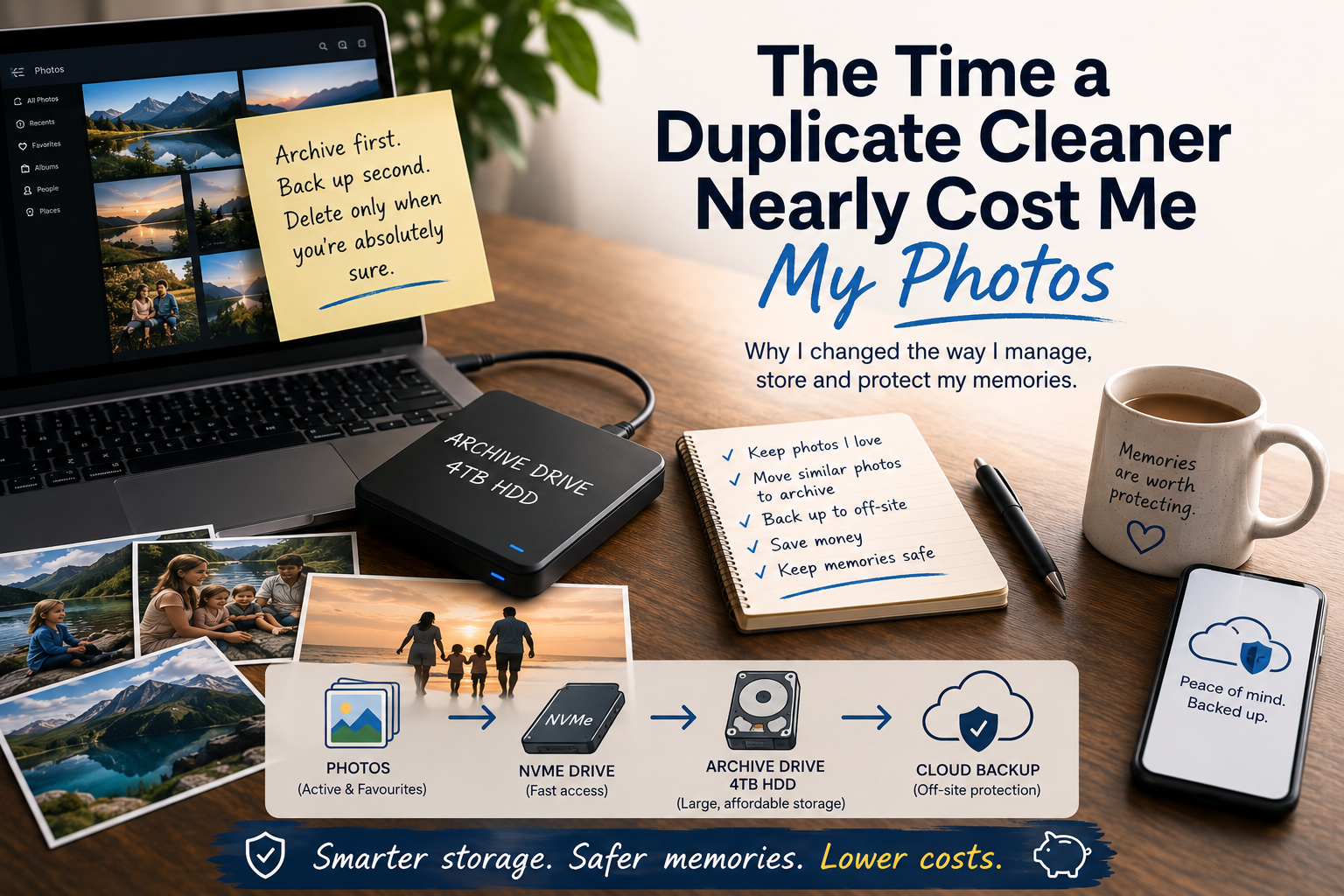
I can review files at my own pace, restore them if I change my mind, organise them properly later and, for extra protection, back the archive up to iDrive. If my computer fails, I still have another copy. If I realise six months later that I actually wanted a photo, it's still available. For me, that is a much safer approach than immediate deletion.
The cost side of photo storage
Another reason I use this workflow is cost. I have a family cloud storage account and it fills up surprisingly quickly. My daughter studies photography and is constantly experimenting with new images, edits and variations. That creates a lot of data in a very short period of time.
Cloud storage is convenient, but it isn't always cheap. Apple iCloud in particular can become expensive when you're storing large photo collections and multiple family members are sharing the same storage pool.
The same is true locally. NVMe drives are fantastic. They're incredibly fast and ideal for the files I'm actively working with, but once you start talking about multiple terabytes of storage, they aren't exactly cheap either.
My approach is simple. I keep the photos I like, use regularly and want quick access to on my NVMe drive. Older photos, similar photos, experiments, archive copies and files I'm not ready to delete can be moved to a larger 4TB hard drive.
That gives me a practical middle ground. I still get fast access to the files that matter most, but I'm not filling expensive NVMe storage or premium cloud storage with files that don't need to be there. What I've found works well is keeping the photos I actively use in iCloud, OneDrive and on my NVMe drive while moving older, less important, duplicate or archive-worthy files elsewhere.
That reduces storage pressure without throwing anything away.
Local storage, cloud storage and proper backup
I know cloud providers offer ways to keep files online only and save local storage, but I still feel more comfortable having important files stored on hardware I physically own. Call me old fashioned, but I like knowing where my files are.
For me, cloud storage is useful, but it isn't a complete replacement for having a local copy and a proper backup.
In my own setup I use iCloud for Windows, OneDrive, iDrive, an NVMe drive, a large hard drive and Zenovix Storage Manager together. Because iCloud is installed on my Windows machine, Zenovix can work with those files just like any other folder. I can archive files locally, back the archive up to iDrive and restore them whenever I need them.
I've saved a significant amount of iCloud storage this way, and it also means I can be more sensible about local storage costs. Could the same idea work with other cloud providers? Probably. But I can only speak from my own experience, and this is the workflow I use today.
The lesson I took from it
The biggest lesson I learned from nearly losing those photos is that storage management isn't really about deleting files. It's about making sensible decisions without taking unnecessary risks.
For me, the safest approach is simple: archive first, back up second, and delete only when you're absolutely sure.
That's the reason Zenovix Storage Manager works the way it does.
Safer storage cleanup
Review duplicate files before deleting anything
Zenovix Storage Manager helps Windows users analyse disk usage, find duplicate and similar files, archive old files and keep cleanup decisions under their control.