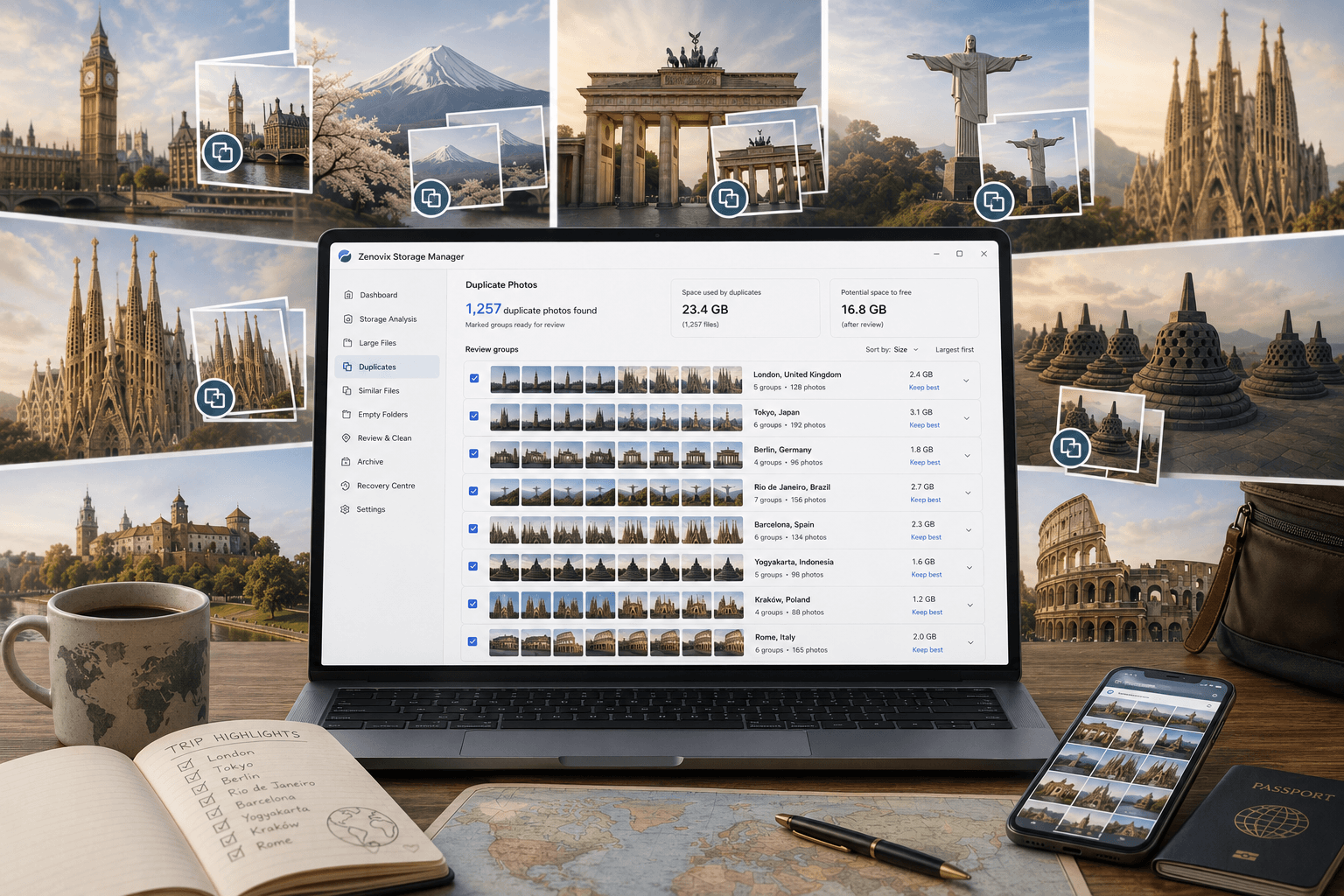
Why Windows storage fills up
Storage rarely fills up because of one obvious thing. It fills up because a computer quietly accumulates data from every direction at once, and Windows does very little to show you where it all went.
On most machines, the space disappears into a familiar set of places:
- Downloads. Installers, ZIP files, PDFs and one-off documents that were needed once and never opened again. Few folders grow as reliably as this one.
- Photos and videos. Phone imports, camera cards, screen recordings and edited exports. Video in particular consumes space faster than almost anything else a home user touches.
- Games and applications. Modern games regularly exceed 100 GB each, and applications leave caches, updates and leftover files behind even after uninstalling.
- Windows itself. Windows Update keeps servicing files in the WinSxS folder, upgrade leftovers can sit in Windows.old, and temporary files and installer caches build up over months of normal use.
- AppData and ProgramData. Application settings, browser profiles, caches and shared program data. These folders grow steadily and are risky to prune by hand.
- Virtual machines and development tools. VM disk images, container layers, package caches and build output folders such as node_modules, bin and obj can consume tens of gigabytes without appearing in any obvious place.
- Duplicate and similar files. The same photo imported twice, a document copied into three project folders, or near-identical shots from the same moment. Individually small, collectively significant.
- Cloud sync folders. OneDrive, iCloud, Dropbox and Google Drive can each keep a local copy of your cloud library, and the same file often ends up both inside and outside the sync folder.
- Archives, backups and forgotten folders. Old exports, "sort later" folders and backups of machines you no longer own. Often important, rarely reviewed.
None of these are mistakes. They are what normal computer use looks like. The problem is only that the space they use is invisible until the drive complains, and by then the honest answer to "what can I delete?" is: you do not know yet.
Understanding what is using your storage
The single most important habit in storage cleanup is to analyse before you act. Deleting files you have not understood is how people lose photos, break applications and free far less space than they expected. Understanding first costs a few minutes and removes almost all of the risk.
Windows gives you a starting point. Open Settings, then System, then Storage, and you get a category breakdown of the system drive: apps, temporary files, documents and so on. It is useful for orientation, but it stops short of showing you the folders and files behind each number. File Explorer can show folder properties one folder at a time, which is workable for spot checks and painful for a whole drive.
Dedicated storage analysis tools close that gap, and they mostly present the same underlying data in different ways:
- Folder trees rank every folder by size, so you can drill from the drive down to the folder that actually holds the space.
- Treemaps draw every file as a rectangle sized by its footprint, which makes a handful of giant files impossible to miss.
- Sunburst charts show the folder hierarchy as rings, useful for seeing how space is distributed across levels.
- File type breakdowns answer questions like "how much of this drive is video?" independently of where the files live.
- Large file lists and storage reports surface the biggest individual items and give you something to review methodically rather than by scrolling.
Which presentation you prefer is genuinely a matter of taste. If you want to compare the classic analysers, we have a separate, detailed look at WizTree, TreeSize and WinDirStat and the jobs each one suits best. The tool matters less than the habit: look first, decide second, delete last.
Fast scans versus deeper analysis
Storage tools make a trade-off between speed and depth, and it helps to know which side of that trade you need before you start.
A quick scan reads folder structure and file metadata: names, sizes, dates, types. That is enough to build a storage overview, list the largest files, break usage down by file type and spot empty folders, and it completes in minutes even on large drives. What it cannot do is tell you whether two files have the same content, because that requires reading the files themselves.
Deeper analysis does read content. Exact duplicate detection compares what is actually inside files, and similar file analysis goes further still, comparing image content to find photos that are nearly, but not exactly, the same. Both take longer, and the time scales with how much data has to be read rather than how many files exist.
Zenovix Storage Manager reflects this split directly. Its Fast Scan covers storage usage, file types, large files and empty folders when you want the overview quickly, while a full Analysis Scan adds exact duplicate matching and similar file matching when you are ready for the deeper questions. Other tools draw the same line in their own ways; what matters is choosing deliberately. If you only want to know where the space went, a fast scan is enough. If you plan to remove duplicates, invest in the deeper pass.
Finding large files safely
Sorting a drive by size feels like the fast route to free space, and it often is. The largest items on a typical Windows machine are videos, disc images (ISOs), database backups, compressed archives, downloads, game installs, build output folders, virtual machine disks and the occasional runaway log file.
But the largest file is not automatically the safest file to remove. Size tells you what a file costs; it tells you nothing about what it is worth. A 40 GB virtual machine image might be a disposable test environment or the only copy of a working system. A database backup is huge precisely because it matters. A big archive might contain years of photos nobody has looked at recently.
For each large file, three questions usually settle it: do you know what it is, could you get it back if you needed it, and is anything still depending on it? An installer you can re-download and an ISO for software you no longer use pass easily. Backups, VM images and anything with "final" in the name deserve a closer look — and if you are unsure, the answer does not have to be delete at all, as covered in the guide to cleaning a drive without deleting important files.
Exact duplicates versus similar files
Duplicate cleanup is where careful tooling matters most, because the difference between "identical" and "similar" is the difference between a safe decision and a risky one.
Exact duplicates: proven by content
Two files are exact duplicates when their contents are byte-for-byte the same. Good tools prove this with a cryptographic hash such as SHA-256: a fingerprint calculated from the file's content. If the fingerprints match, the contents match, no matter what the files are called. Zenovix, for example, only groups files as exact duplicates when their size matches and their SHA-256 hashes agree — a renamed copy is still caught, and two different files that share a name are never confused.
This matters because filenames lie in both directions. The
same holiday photo can exist as
IMG_2041.jpg and beach-sunset.jpg,
and two completely different reports can both be called
invoice.pdf. Content is the only reliable
evidence. Once an exact duplicate group is confirmed, the
decision is comparatively easy: you probably only need one
copy, and the remaining question is which copy sits in the
right place.
Similar files: evidence, not proof
Similar files are a different category entirely. An edited photo and its original, a compressed image and the full-quality version, a resized export and the source file — these can look almost identical while being genuinely different files with different value. Photo similarity analysis compares image content rather than bytes, so it can surface these pairs, but it cannot tell you which one you care about.
That is why similar files always require human review. A similarity match is a prompt to look, not a verdict. A tool that treats near-matches as duplicates and deletes them in bulk is making a judgement it has no basis to make — usually with your photos.
Reviewing duplicate photos safely
Photos deserve their own section because they are the files people most regret losing, and the files most likely to exist in several near-identical copies. Phone imports create one copy per import, cloud services keep their own copies, editing creates versions, and burst mode can produce ten frames of the same second.
When you review a group of matching or similar photos, a few checks identify the copy worth keeping:
- Resolution and file size. Keep the largest, highest-resolution version. A smaller copy is usually a compressed re-share or a thumbnail-quality export.
- Metadata. The original photo normally carries its date taken, camera model and location data. Copies that passed through messaging apps often lose this.
- Edits. An edited version is not a duplicate of the original. Decide whether you want the edit, the original, or both — that is a curation choice, not a cleanup one.
- Screenshots and bursts. Screenshot folders and burst sequences produce many similar images that are usually safe to thin out, but they are also where the one frame you wanted hides.
- Cloud copies. Before deleting a "duplicate" in a sync folder, work out whether it is the same file synced locally or an independent copy. The first will be re-deleted from the cloud; the second is your safety margin.
The general rule: keep the highest quality version, keep it in the folder where you would look for it, and never let a tool remove every copy in a group. We have written before about how a bulk duplicate cleaner nearly cost a family its photos — the lesson from that story is exactly this one: review is not optional when the files are irreplaceable.
Cloud storage: OneDrive, iCloud, Dropbox and Google Drive
Cloud sync folders are the most misunderstood part of Windows storage, and the place where a cleanup mistake can propagate beyond the machine in front of you. Two ideas explain most of the confusion.
First, online-only files. Modern sync clients can show a file in File Explorer without storing its content locally — a placeholder that downloads on demand. Placeholders use almost no disk space, so "freeing up space" by deleting them achieves little, while opening or scanning them can quietly trigger large downloads.
Second, sync is a mirror, not a backup. A sync folder is a live view of your cloud storage. Delete a synced file locally and the deletion syncs too: the file disappears from the cloud and from every other device on the account. Most services hold deleted files in their own recycle bin for a limited time, which softens mistakes but should never be the plan.
OneDrive
OneDrive is built into Windows and often syncs Desktop, Documents and Pictures by default, which means "my documents folder" and "my cloud storage" can be the same thing without you ever choosing it. Its Files On-Demand feature keeps files online-only until opened. Before cleaning anything under the OneDrive folder, check whether files are local or online-only (the status column in File Explorer shows this), and remember that deletions travel to the cloud and to your other devices.
iCloud Photos
iCloud Photos on Windows downloads copies of your photo library, and imports from an iPhone can land in separate folders as well. It is common to end up with the same photo in an iCloud folder, an import folder and a manually sorted album. Those copies are real duplicates, but be deliberate about which library remains the authoritative one before removing any of them.
iCloud Drive
iCloud Drive syncs documents in the same mirror-like way as OneDrive: deleting a file from the local iCloud Drive folder removes it from iCloud and from your Apple devices. If your goal is only to reclaim local disk space, the right lever is usually the client's option to keep files online-only, not deletion.
Dropbox
Dropbox behaves the same way, with online-only files available through its Smart Sync feature. One extra habit worth having: folders shared with other people live inside your Dropbox too, and deleting shared content can affect everyone in the share, not just you.
Google Drive
Google Drive for desktop offers two modes: streaming files (online-only, minimal disk use) and mirroring files (full local copies). Which mode you are in changes what cleanup means — a mirrored Drive can occupy hundreds of gigabytes locally, while a streamed one occupies almost nothing. Check the mode before drawing conclusions about the space involved.
Storage tools handle these folders differently, and it is worth knowing how yours behaves. Zenovix detects common cloud folders such as OneDrive, iCloud, Dropbox and Google Drive, warns you before scanning them, and skips online-only placeholders by default so a storage scan does not silently download your cloud library. Whatever tool you use, the safe assumptions are the same: treat sync folders as live mirrors, understand what is local before acting, and never rely on the cloud service's recycle bin as a backup.
Windows folders that require caution
Some folders look like easy wins because they are large, and are anything but. As a rule, cleanup should stay inside your own files; the folders below belong to Windows and your applications.
- Windows and System32. The operating system itself. Deleting from here is how a slow computer becomes a computer that does not start. Leave them alone entirely.
- WinSxS. The component store for Windows servicing and updates. It looks enormous, partly because of how hard links are reported. Never delete from it directly — Windows maintains it through its own cleanup mechanisms.
- Program Files and Program Files (x86). Installed applications. Removing folders here leaves broken registry entries and half-dead programs. Uninstall through Settings instead, then check for leftovers.
- ProgramData and AppData. Shared and per-user application data: settings, profiles, caches, game saves. Individual caches can be cleared from inside the application that owns them, but pruning these trees by hand is a reliable way to break software.
- Windows.old. Your previous Windows installation, kept so you can roll back after an upgrade. It is safe to remove, but only through Storage Sense or Disk Cleanup, which retire it properly. It also disappears on its own after a retention period.
- Temporary folders. Genuinely clearable, but use the built-in tools (Storage Sense, or Settings > System > Storage > Temporary files) rather than deleting from Temp folders while programs are running.
The pattern: for system items there is almost always a proper tool, and the proper tool is the safe route. Our "Is it safe to delete this?" field guide goes item by item — Windows.old, WinSxS, hiberfil.sys, pagefile.sys and more — if you want the specifics.
Recycle Bin, permanent deletion and archiving
Not all "delete" is the same, and knowing which action you are taking is most of what safety means in practice.
The Recycle Bin is Windows' undo buffer. Files sent there can be restored until the bin is emptied or outgrows its size limit, at which point Windows discards older items. It is a good default for reviewed cleanup, with two caveats: very large files may not fit and can prompt for immediate permanent deletion, and files on some external or network locations bypass the bin entirely.
Permanent deletion — Shift+Delete, emptying the bin, or a tool's "delete permanently" option — should be treated as final. Recovery software exists, but it is a last-resort gamble, not a plan.
Archiving is the middle path that cleanup advice tends to skip: moving files out of your working folders to a designated archive location — another drive, a NAS, an external disk — so the space is freed without a final decision being forced. Done properly, archiving means verified copies: the file is copied, the copy is checked, and only then is the original removed, with a record kept of what went where.
This is the approach Zenovix is built around. Its archive workflow copies reviewed files to your chosen archive location, verifies each copy, then removes the original and keeps a recovery record, so the Recovery Centre can later show what was archived and restore any of it to its original path. But the principle stands with or without any particular tool: for files you are unsure about, move and verify beats delete and hope. We have written more about that mindset in "You don't have to delete files to declutter your PC".
One honest caveat: an archive is not automatically a backup. If the archive drive is the only place a file exists, that file now depends on one disk. Important archives deserve the same backup protection as any other important data.
A safe cleanup workflow
Everything above condenses into a process you can run start to finish in an afternoon, or folder by folder over a week:
- Check the baseline. Note how much free space you have, so you can see what the cleanup achieved.
- Clear system clutter with system tools. Run Storage Sense or Disk Cleanup for temporary files, update leftovers and the Recycle Bin. This is the safe, boring win.
- Analyse your own files. Scan the areas where your data lives — Documents, Pictures, Videos, Downloads, project folders. Start with a quick scan for the overview; add duplicate analysis when you are ready to act.
- Review large files first. Biggest wins, smallest count. Apply the three questions: what is it, can I get it back, does anything depend on it?
- Review exact duplicates next. Confirmed content matches are the clearest decisions. Choose the copy in the right location; keep at least one copy of everything.
- Take similar files slowly. Treat every match as a pair of different files until you have looked. Photos especially.
- Archive the uncertain. Anything you hesitated over goes to the archive location, verified, not to the bin.
- Delete only the confident decisions. Recycle Bin for normal cases; permanent deletion only when you accept the file is gone.
- Read the results. If anything was skipped, locked or failed, find out why before running a second pass.
If you want this workflow in more depth, the analyse, review, archive, then delete article expands each stage, and the Zenovix manual shows how the same stages map onto the app if you use it.
Common mistakes
Most storage disasters trace back to a handful of avoidable patterns:
- Blind one-click cleanup. Any tool that finds and removes in a single motion has skipped the step where you decide. Speed is only a virtue after review.
- Deleting duplicates by filename. Matching names prove nothing in either direction. Only content matching identifies real duplicates.
- Deleting cloud files without understanding sync. The deletion mirrors to the cloud and every device. Know whether a file is local, online-only or shared before touching it.
- Registry cleaners for disk space. The registry is not where your space went, and aggressive registry cleaning carries real risk for effectively no storage benefit. Our comparison of Zenovix with CCleaner and the classic analysers covers where each kind of tool actually helps.
- Deleting from system folders. If it lives under Windows, WinSxS or Program Files, the answer is the proper tool or nothing.
- Trusting similarity matches without looking. Similar means "check this", not "delete this".
- Deleting backups because nothing has gone wrong recently. A backup looks redundant right up until the moment it is priceless. Retire backups deliberately — when a newer verified backup replaces them — never casually during a cleanup sweep.
SSD storage: what actually matters
Most Windows machines now run on SSDs, which changes the cleanup conversation slightly. SSDs manage themselves far better than mechanical drives ever did: there is no defragmenting to do, and Windows handles maintenance like TRIM automatically.
Free space still matters, for practical rather than dramatic reasons. SSDs use spare capacity to manage writes, and a nearly full drive gives the controller less room to work, which can slow sustained writes. More mundanely, Windows needs headroom for updates, temporary files and the page file, and a drive at 98% capacity turns every large download into a crisis. Keeping roughly 10–20% free is a sensible target; the exact number matters less than not living at the ceiling.
What cleanup will not meaningfully do is make a healthy SSD faster in day-to-day use. If a drive is comfortably below capacity, freeing another 50 GB is about breathing room, not speed. Be sceptical of anything that promises otherwise — honest storage management is about space and control.
How often should you review your storage?
Storage review works better as a light routine than a yearly emergency. How often depends on how quickly you create data:
- Home users: a proper review once or twice a year is usually plenty, with a quick look whenever the low-space warning appears.
- Photographers: review after each import session, or monthly. Imports are where duplicates are born, and the sooner they are reviewed the easier the decisions are.
- Developers: quarterly. Build outputs, package caches, old clones and VM images regrow like weeds; a recurring sweep of the projects directory keeps them in check.
- Gamers: before each big install. One finished 100 GB game usually funds the next one.
- Video editors: per project. Archive the source footage and project files when a project ships, rather than letting finished work occupy working storage indefinitely.
- Heavy cloud users: twice a year, check what is actually stored locally versus online-only — sync settings drift, and a "small" sync folder can quietly become a mirrored one.
Little and often beats rarely and drastically. Reviews done under pressure, on a full drive, are exactly the reviews where mistakes happen.
Frequently asked questions
What is taking up space on my C drive?
The usual culprits are Windows itself, installed applications and games, the Downloads folder, photos and videos, temporary files and cloud sync folders. Open Settings, then System, then Storage for a first breakdown, and use a storage analysis tool when you need to see individual folders and files.
Can I delete AppData?
No, do not delete the AppData folder itself. It holds settings, caches and saved data for your applications, and removing it can break programs or lose data such as browser profiles and game saves. If a single application's cache has grown very large, clear it from inside that application where possible.
Can I delete ProgramData?
No. ProgramData stores shared settings and data that installed applications depend on. Deleting it, or folders inside it that you do not recognise, can stop software from working. Leave it alone unless a specific vendor support article tells you to remove a specific folder.
Is it safe to delete duplicate files?
Exact duplicates, confirmed by matching file content rather than just matching names, are usually safe to reduce to one copy after review. Always check which copy sits in the correct folder, keep at least one copy of every file, and treat similar files as different versions until you have looked at them yourself.
Does deleting OneDrive files remove them from the cloud?
Usually yes. A OneDrive folder is a synced view of your cloud storage, so deleting a file inside it normally deletes the cloud copy too, on every device connected to the same account. OneDrive keeps deleted files in its own recycle bin for a limited time, but you should not rely on that as a backup.
What is the safest way to clean Windows storage?
Analyse your storage first so you know what is using the space, then review files before acting on them. Use Windows tools such as Storage Sense for system clutter, archive personal files you are unsure about instead of deleting them, and only delete permanently when you understand what a file is and accept that it will be gone.
How much free space should an SSD have?
A common rule of thumb is to keep roughly 10 to 20 percent of an SSD free. Modern drives manage themselves well, but leaving some free space helps sustained write performance and gives Windows room for updates, temporary files and the page file.
More questions about Zenovix itself are answered in the product FAQ.
Final thoughts
Safe storage cleanup is not really a technical skill. It is a sequence: understand what is using the space, review the files that are candidates, archive what you are unsure about, and delete only what you are confident about. Every disaster story in this space — and there are many — comes from running that sequence out of order.
The tools are the easy part. Windows' built-in Storage settings and Storage Sense handle system clutter well. The classic analysers show you where space went. Review-first tools like Zenovix exist for the step in the middle — the careful part, where your own files are involved and the decisions are yours to make. That review-first idea is the reason Zenovix was built in the first place.
Whatever you use: look before you delete, keep one verified copy of anything that matters, and give yourself a route back. Free space is easy to recover. Files are not.
Review-first cleanup
Understand your storage before you change it
Zenovix Storage Manager analyses the folders you choose, groups exact duplicates and similar files for review, and supports archive-first cleanup with verified copies and recovery records — all locally on your PC.