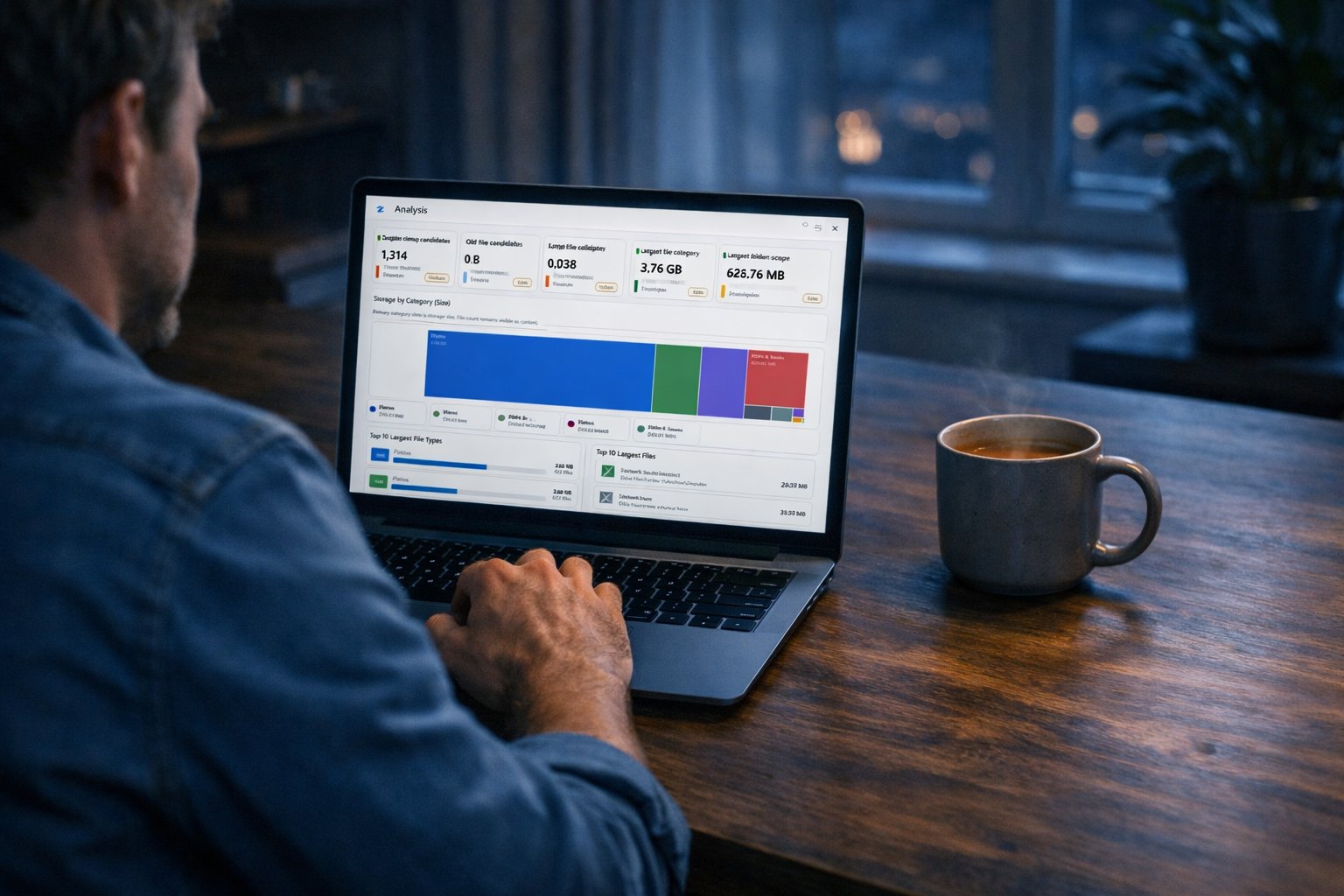
Start by understanding what is using the space
Before you clean up a Windows drive, slow down long enough to see what is actually taking up room. The biggest folder is not always the safest folder to empty, and the biggest file is not automatically junk.
A sensible first pass is just investigation. Look for obvious pressure points: Downloads, old exports, video projects, installers, virtual machines, game captures, photo libraries and cloud-sync folders that have quietly grown over time.
This is where a disk space analyser or Windows storage manager earns its keep. The useful part is not the colourful chart by itself. The useful part is being able to move from a broad storage picture into the actual files behind it.
Zenovix Storage Manager is built around that kind of workflow. It scans folders you choose, shows analysis views, and lets dashboard filters carry forward into review so you can focus on a smaller set of files instead of trying to decide everything at once.
Separate obvious clutter from important personal files
Some files are easy decisions. Temporary downloads, failed exports, duplicate installers and old zip files are often safe to remove once you have checked they are no longer needed.
Personal files deserve more caution. Photos, videos, project folders, tax documents, music libraries, exported work and anything connected to cloud storage can look messy without being disposable.
The habit I recommend is to sort files into three mental piles: clearly delete, clearly keep, and unsure. The unsure pile is the one that causes trouble. If you are tired, rushed or trying to win back space quickly, that is exactly where mistakes happen.
If a file still has possible value, do not force a delete-or-keep decision immediately. Move slower. Open it, check the folder context, and consider archiving it before you remove it from the active drive.
Be careful with duplicates, especially photos and cloud folders
Duplicates are tempting because they feel mathematically safe. If two files are the same, surely one can go. That is often true, but the review still matters.
The danger is context. One copy may live in a project folder, another in a backup folder, another in OneDrive or iCloud for Windows, and another in a photo export. The bytes might match, but the folder location may still tell you why that copy exists.
Zenovix supports exact duplicate detection using SHA-256 hash matching, with file size matching available as part of the exact matching setup. That is the safer end of duplicate detection because it compares file content rather than just trusting the file name.
The app also has optional fuzzy name and fuzzy content passes for similar files. I would treat those as review helpers, not proof that files are disposable. Similar photos, recompressed videos or near-matching documents need human judgement.
A duplicate file finder should help you gather candidates. It should not make the final decision for you.
Archive uncertain files before deleting them
If you are not sure, archive before delete. That one habit can turn a risky cleanup into a calmer storage project.
Archiving is different from pretending every file is important forever. It simply gives you a middle step. Files can leave the crowded drive or active folder, but you still have a recovery path while you decide whether they are truly no longer needed.
In Zenovix, reviewed cleanup can be executed in Archive mode. The app builds an archive job, writes manifest-backed records, copies selected files into an archive location, verifies the archived file by existence and size, and then removes the source file when the archive operation succeeds.
Those archive records are what make the Recovery Centre useful. They let you inspect previous archive jobs, preview restore paths and restore archived items later.
Avoid one-click cleanup when the files matter
One-click cleanup has its place for browser caches and temporary files. It is a poor fit for personal data.
A drive full of photos, documents and project folders is not just a pile of wasted bytes. It is a history of decisions you made over years, sometimes across several computers and cloud accounts.
If the goal is to safely delete files, the review step is not a delay. It is the part that makes the cleanup trustworthy.
That is why I built Zenovix as a review-first tool rather than a press-one-button-and-hope tool. The app separates scan, analysis, review and execute. Files marked for cleanup are not changed until you choose an execution method.
For anything important, the safer workflow is boring in the best way: inspect the files, mark what should happen, confirm the reviewed set, then run the action you actually intended.
Keep a record of what you reviewed
A cleanup session is much easier to trust when you can see what happened. That is especially true if you are working through thousands of files or returning to the job later.
Zenovix can save scan results as Zenovix scan files. When a saved scan is opened, the app checks file locations, size and timestamp, and can run deep verification by recomputing SHA-256 hashes before cleanup.
It can also export visible review results to CSV, including the group number, match reason, review label, selection state, file path, size, timestamp and hash. That is useful if you want an audit trail or simply want to review the list away from the main app.
Keeping a record does not make deletion risk-free, but it does make the process less mysterious. You can see what you reviewed instead of relying on memory.
A safer workflow: scan, review, archive, verify, then remove
The safest way to free up disk space on Windows is usually not a single action. It is a sequence.
Scan the folders that are actually causing the problem. Review the largest files, duplicate groups, empty folders and archive candidates. Archive uncertain files first. Verify that the archive or cleanup action succeeded. Only then remove files permanently if you are genuinely comfortable losing the recovery path.
Zenovix supports that slower sequence. It can analyse selected folders, show storage dashboards, carry filters into Review, mark duplicate copies or selected files for cleanup, archive reviewed items, send reviewed cleanup to the Windows Recycle Bin, or permanently delete reviewed items when you choose that mode.
Permanent delete is available, but it should be treated as final. If the files matter, archive first or use the Recycle Bin path where appropriate.
FAQ
What is the safest way to clean up a Windows drive?
Start by analysing what is using the space, then review files before deleting them. For personal files, use an archive or backup step before permanent deletion.
Are duplicate files always safe to delete?
No. Exact duplicates may contain the same bytes, but their folder location can still matter. Review duplicate groups before removing any copy.
Should I use one-click cleanup tools for photos and documents?
Use caution. One-click cleanup is better suited to temporary files than personal files. Photos, documents and cloud folders deserve slower review.
How does Zenovix Storage Manager help with safer cleanup?
Zenovix scans selected folders, analyses storage, finds exact SHA-256 duplicate groups, supports careful review, saves scan state, exports CSV review records, and can archive reviewed files before removal.
Review-first cleanup
Use Zenovix to work through storage decisions carefully
Zenovix Storage Manager helps Windows users analyse selected folders, review large files and duplicates, save scan progress, archive before delete, and keep cleanup decisions under their control.