What “old file” actually means in Windows
Ask Windows for your old files and it will not give you a straight answer, because Windows does not have a concept of an old file. It stores timestamps, and “old” is a judgement you make about them. That distinction sounds pedantic until you act on it and delete something that mattered.
The useful reframing is this: file age is evidence, not a verdict. A file that has not been opened since 2019 is telling you something worth investigating. It is not telling you the file is disposable. Tax records, scanned certificates, the original of a photo you have only ever shared as a compressed copy, the installer for a licence you still own — all of them sit untouched for years and all of them matter.
What age genuinely buys you is a shortlist. On a drive with hundreds of thousands of files, you cannot review everything, and reviewing at random wastes the effort. Sorting by age gives you a defensible place to start looking, because files that stopped changing years ago are, on average, more likely to be finished than files you edited this morning.
So the goal of this article is not to find old files and delete them. It is to build a repeatable investigation: narrow by age, weight by size, check the exceptions, and then choose deliberately between keeping, archiving and deleting.
Created, modified and accessed answer different questions
Windows keeps three timestamps for most files, and people routinely reach for the wrong one. They are not interchangeable, and knowing which question each answers is the difference between a useful shortlist and a misleading one.
Date created is when this particular copy appeared in this particular place. It is the most commonly misread of the three. Copy a 2015 photo to a new drive today and its created date becomes today, because a new copy was created. Restore a backup and thousands of ancient files suddenly look brand new. Created date tells you the age of the copy, not the age of the content.
Date modified is when the contents last changed. This is the timestamp that best answers “is anyone still working on this?”, and it is the one to sort by for almost all cleanup work. Crucially, it usually survives being copied or moved, so it stays meaningful when a file has been shuffled between drives.
Date accessed is when the file was last read. In principle this is exactly what you want: not just unedited, but unopened. In practice, treat it with suspicion. Windows updates it lazily by default for performance reasons, and backup tools, search indexers and antivirus scanners all read files without you being involved, which can refresh the timestamp on files nobody has genuinely opened in years.
The practical rule: investigate with date modified, sanity-check with date created when a result looks implausible, and treat date accessed as a weak hint rather than proof.
Finding old files with File Explorer
File Explorer can do more date filtering than most people realise, and for a single folder it is often the fastest route.
Open the folder, click the search box, and use the Search tab that appears. The Date modified dropdown offers ranges such as Last week, Last month and Last year, but the more useful trick is typing a query directly into the search box.
datemodified:<01/01/2023
datemodified:<01/01/2023 size:>100MB
datemodified:2019..2021
The first finds everything modified before 2023. The second adds a size floor so only substantial files come back. The third takes a date range, which is handy when you want to look at one specific period rather than everything before a cutoff. Use your own locale’s date order — the search box follows your regional settings.
Then switch the view to Details, add the Size and Date modified columns if they are not already there, and sort. This is where File Explorer earns its place: seeing age and size side by side immediately shows you which old files are actually worth your attention.
Its limits are real, though. Search speed depends heavily on whether the location is indexed, results are scoped to where you started rather than the whole machine, and there is no way to see the shape of your storage over time. It answers “show me files matching this filter” well, and “where did my storage go” not at all.
Finding files older than a date with PowerShell
When you want a precise, repeatable answer — or a list you can keep — PowerShell is the better tool. Everything below only reads the file system.
To list files not modified in the last two years, sorted with the largest first:
Get-ChildItem -Path "D:\" -Recurse -File -ErrorAction SilentlyContinue |
  Where-Object { $_.LastWriteTime -lt (Get-Date).AddYears(-2) } |
  Sort-Object Length -Descending |
  Select-Object -First 50 FullName, LastWriteTime,
    @{ Name = "SizeMB"; Expression = { [math]::Round($_.Length / 1MB, 1) } }
The same shape covers the common “files older than X days” request — swap AddYears(-2) for AddDays(-90). To find only the meaningful ones, add a size floor so you are not wading through thousands of tiny text files:
$cutoff = (Get-Date).AddYears(-2)
Get-ChildItem -Path "D:\" -Recurse -File -ErrorAction SilentlyContinue |
  Where-Object { $_.LastWriteTime -lt $cutoff -and $_.Length -gt 100MB } |
  Sort-Object Length -Descending |
  Export-Csv -Path "$HOME\Desktop\old-large-files.csv" -NoTypeInformation
That last line matters more than it looks. Exporting to CSV turns a one-off query into a working document: you can open it in Excel, sort it, add a column for your decision, and work through it over several sittings instead of trying to hold the whole thing in your head.
Two cautions. -ErrorAction SilentlyContinue hides the permission errors you will hit in system folders; that keeps the output readable but also means you are not seeing everything. And please resist the many “delete files older than X days” one-liners on the internet that pipe straight into Remove-Item. A recursive delete driven by a timestamp filter, running unattended, is one typo away from removing something irreplaceable. List first, review, then act.
Combining age and size to find real opportunities
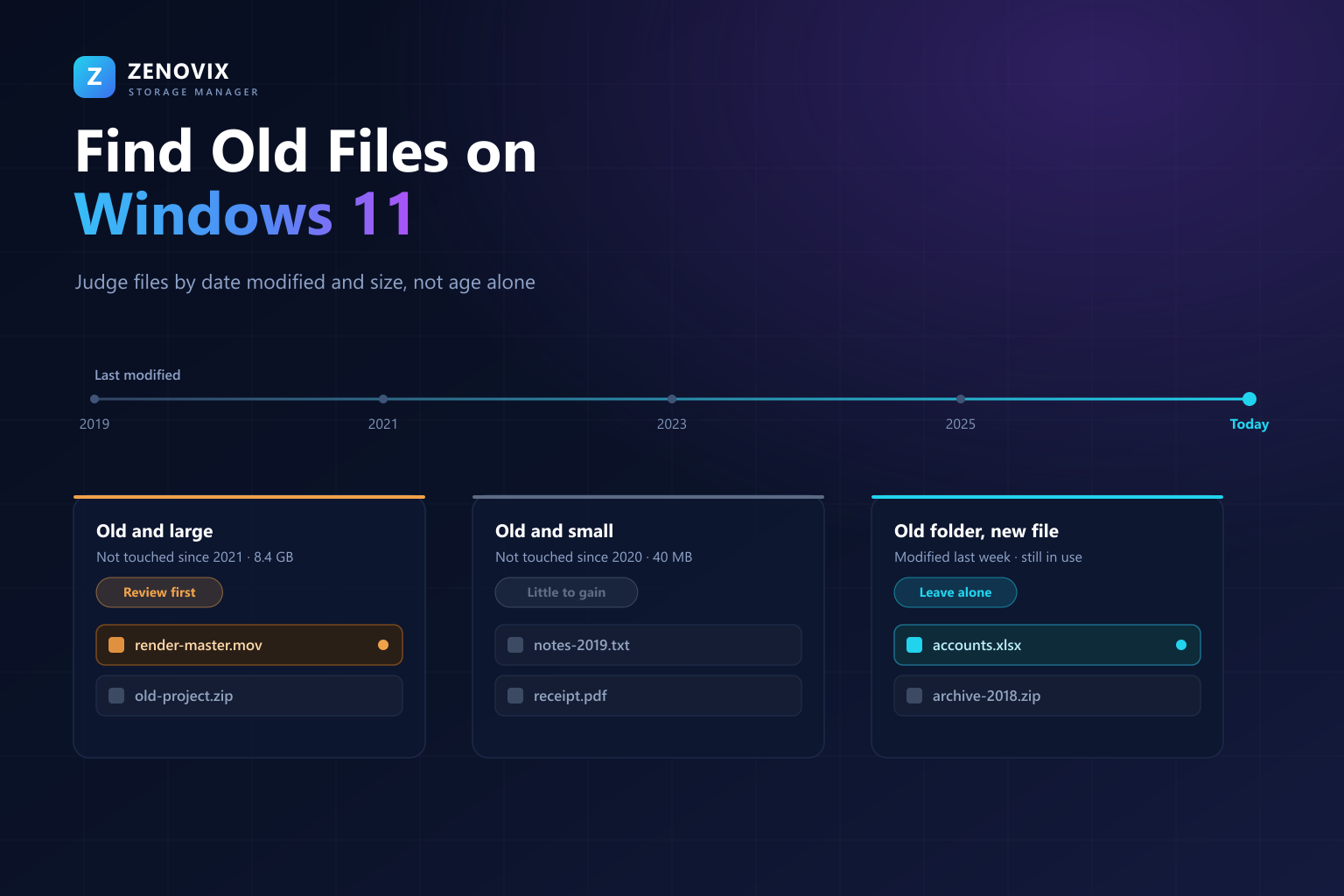
Age on its own produces a list that is far too long to act on. Size on its own points at files you are actively using. The intersection is where the actual opportunity lives, and it splits neatly into categories worth treating differently.
Old and large is the category that justifies the exercise. Video exports, virtual machine disks, disk images, unpacked archives, render caches, old project folders. A single forgotten 40 GB folder is worth more than a thousand old documents, and because these files are big they tend to be obvious once surfaced — you either recognise the project or you do not.
Old and small is where good intentions go to die. Ten thousand old text files, configs and receipts might total 200 MB. Reviewing them individually could take an afternoon and would reclaim less space than deleting one forgotten video. The honest advice is to leave them alone: the storage benefit does not repay the time, and the risk of deleting something needed is the same as for any other file.
New and large is your active working set. Big and recently modified almost always means in use. Leave it.
New and small is the everyday churn of a working machine and is not a storage problem.
Put concretely: sort by size within your age filter, and work down from the top. Stop when the entries get small enough that the effort stops paying. That threshold is personal, but for most people it is somewhere around a gigabyte.
Using the Zenovix activity timeline and filters
This is where a dedicated tool earns its place, because the thing File Explorer and PowerShell cannot show you is shape. A list tells you which files are old. A timeline tells you when your storage actually accumulated, which is a different and often more revealing question.
Scan the drive or folders you care about in Zenovix Storage Manager, then open the Analysis Dashboard. The Historic File Activity chart plots file activity across years, and you can drill from yearly totals down through quarters, months and days. A tall bar in 2021 followed by near silence is a visual signature of a project that ended — and a much better starting point than an alphabetical list of files.
Click into a period and the rest of the dashboard filters to it. Combine that with the size bands, file type breakdown and largest files and folders views, and you are describing exactly the intersection from the previous section: show me the large files from the period when this drive filled up. That is a handful of clicks rather than a query.
Scanning, the dashboard, the activity timeline, filtering and the largest file and folder views are all part of the free edition, so the entire investigation described in this article can be done without paying for anything.
One deliberate design point is worth knowing: Zenovix never acts on a filter. Narrowing the dashboard to old, large files does not mark them for anything. It changes what you are looking at, and every cleanup decision remains a separate, explicit choice you make per file.
Folders that should not be judged by age alone
Some things are old by design, and an age filter will happily surface every one of them. Recognising these before you start saves both storage and regret.
A recently modified file inside an old folder is the most important signal to respect. If a folder full of 2018 files contains one spreadsheet edited last week, that folder is not dormant — it is a live reference someone still consults. Judge the folder by its newest file, not its oldest.
Program and system folders are full of files written once at install time and never touched again. That is normal and their age means nothing. Windows folders, Program Files and application data are not cleanup targets; Storage Sense and each program’s own uninstaller are the right tools there.
Archives and backups are supposed to be old. A folder of 2016 tax records that has not been opened since 2016 is doing precisely its job. Never treat “not accessed” as “not needed” for anything you keep for legal, financial or sentimental reasons.
Photos and video are the classic trap. Original captures are written once and then left alone forever, so an entire photo library can look completely dormant while being the least disposable thing you own.
Cloud-synced folders deserve care too. Files that are online-only may show local timestamps that reflect sync activity rather than genuine use, and removing a local copy of a synced file can propagate that deletion to every other device.
Archive, Recycle Bin or permanent deletion
Once you have a shortlist, the decision is not binary. Old files produce more genuinely uncertain cases than any other kind of cleanup, precisely because the context has faded — that is what made them old in the first place. Matching your confidence to the right action is the whole game.
When you are certain something is disposable — a re-downloadable installer, an extracted copy of an archive you still have, a render you can reproduce — the Recycle Bin is the sensible default, and permanent deletion is reasonable when the file is genuinely large and genuinely worthless. Both are available in the free edition after review.
When you are not certain, and with old files you frequently will not be, archiving is the honest answer. In Zenovix Pro, archiving copies the file to an archive location you choose, verifies the copy, removes the original, and records the operation so the Recovery Centre can restore it later. The space comes back from your working drive, but the file still exists and there is a recorded route to it.
That distinction matters because the alternative most people fall into is worse: they leave everything, because deciding is uncomfortable and deletion feels final. Archiving turns an uncomfortable permanent decision into a comfortable reversible one, which is usually what actually unblocks a cleanup.
A reasonable rule of thumb: if you would need to think for more than a few seconds about whether you could live without it, archive rather than delete.
Building an annual file review routine
Doing this once produces a tidy drive that slowly refills. Doing it on a schedule keeps the job small, because you are only ever reviewing one year of accumulation rather than a decade of it.
Once a year, scan the drives that matter and open the activity timeline. Look at what crossed the two-year line since last time — that is your review set, and it is much shorter than a full sweep. Sort it by size, work down until the entries stop being worth the effort, and stop.
Keep a record of what you decided. A CSV export of the files you reviewed, with a column for the outcome, means next year’s review does not revisit the same judgement calls. In Zenovix Pro, saved scans and CSV export cover this, and the Storage History Workbook goes further by appending each scan’s summary over time so you can see growth trends across years rather than isolated snapshots.
Set expectations sensibly. The point of an annual review is not to reclaim the maximum possible space. It is to keep your storage understandable, so that when the drive does fill up you already know where it went and which decisions you have already made.
FAQ
How do I find files not modified in years on Windows 11?
In File Explorer, search the folder with a query such as datemodified:<01/01/2023, then switch to Details view and sort by Size. For a precise or repeatable list, use PowerShell with Get-ChildItem and a LastWriteTime filter. For a visual view of when your storage accumulated, scan the drive in Zenovix and use the Historic File Activity timeline.
What is the difference between date created and date modified?
Date created is when that copy of the file appeared in that location, so copying an old file to a new drive gives it today's created date. Date modified is when the contents last changed and usually survives being copied or moved. For cleanup, date modified is the more reliable signal.
Is it safe to delete files that have not been opened in years?
Not automatically. Age tells you a file is a candidate for review, not that it is unnecessary. Tax records, original photos, scanned documents and licence installers all sit untouched for years and still matter. Review old files individually, and archive rather than delete anything you are unsure about.
Should I use a script to delete files older than X days?
Be very careful. Recursive delete commands driven by a date filter are a common cause of accidental data loss, especially when run unattended. Use scripts to list and export candidates, review that list, and then act deliberately on what you have checked.
Why does date accessed not seem accurate?
Windows updates the last accessed timestamp lazily by default for performance reasons, and backup software, search indexers and antivirus scanners read files without you opening them. Treat date accessed as a weak hint and rely on date modified instead.
Do I need to pay to find old files with Zenovix?
No. Scanning, the Analysis Dashboard, the Historic File Activity timeline, filtering and the largest file and folder views are part of the free edition. Pro adds the verified archive workflow, Recovery Centre, saved scan reviews, CSV export and Storage History Workbooks.
See when your storage actually accumulated
Use Zenovix to investigate old files before removing them
Zenovix Storage Manager scans the folders you choose, plots file activity across years, and lets you filter by period, size and file type to find the old files that are actually worth reviewing. Nothing is marked or removed by a filter — every decision stays yours.