Why duplicates accumulate across several drives
Duplicates rarely stay on one drive. Every time a computer gets full, most of us do the same thing: buy an external hard drive, copy things across "for now", and promise to sort it out later. Later never comes, and the next time the C: drive fills up the cycle repeats with a new drive.
Add a USB stick used to move files between machines, an old laptop backup dumped into a folder called something like Old-PC-2022, and a cloud sync folder that mirrors part of it all again, and you end up with the same photos, videos and documents scattered across three or four storage locations.
None of those copies were mistakes at the time. Each one was a reasonable answer to an immediate problem. The result, though, is that you cannot clean up any single drive with confidence, because you no longer know which copies are unique and which exist in triplicate.
That is why the useful question is not "what is on this drive?" but "which of these files also exist somewhere else?" Answering it means scanning several locations in one pass and comparing the files against each other, not reviewing each drive in isolation.
Why searching by filename is not enough
The tempting shortcut is to sort both drives by name and eyeball the overlap. It fails in both directions.
Two files with the same name can be completely different. Every camera on earth has produced an IMG_0001.jpg, and every project folder eventually contains a notes.txt. Matching by name would happily pair your wedding photos with a screenshot from 2019.
Worse, two identical files can carry different names. Copy a file to an external drive and rename it, let Windows append "- Copy", or let a photo tool re-export with its own naming scheme, and the same bytes now hide behind different labels. A filename search will never connect them.
The reliable way to find duplicate files across folders and drives is to compare what is inside the files. Zenovix Storage Manager confirms exact duplicates by file content, so two files are only grouped together when their bytes genuinely match, whatever they are called and wherever they live.
How to compare an internal drive with an external drive
In Zenovix, comparing two drives for duplicate files is the same workflow as scanning one, just with more sources. Plug in the external drive, then add both locations to the same scan: for example, your Pictures and Documents folders on C: alongside the root of the external drive.
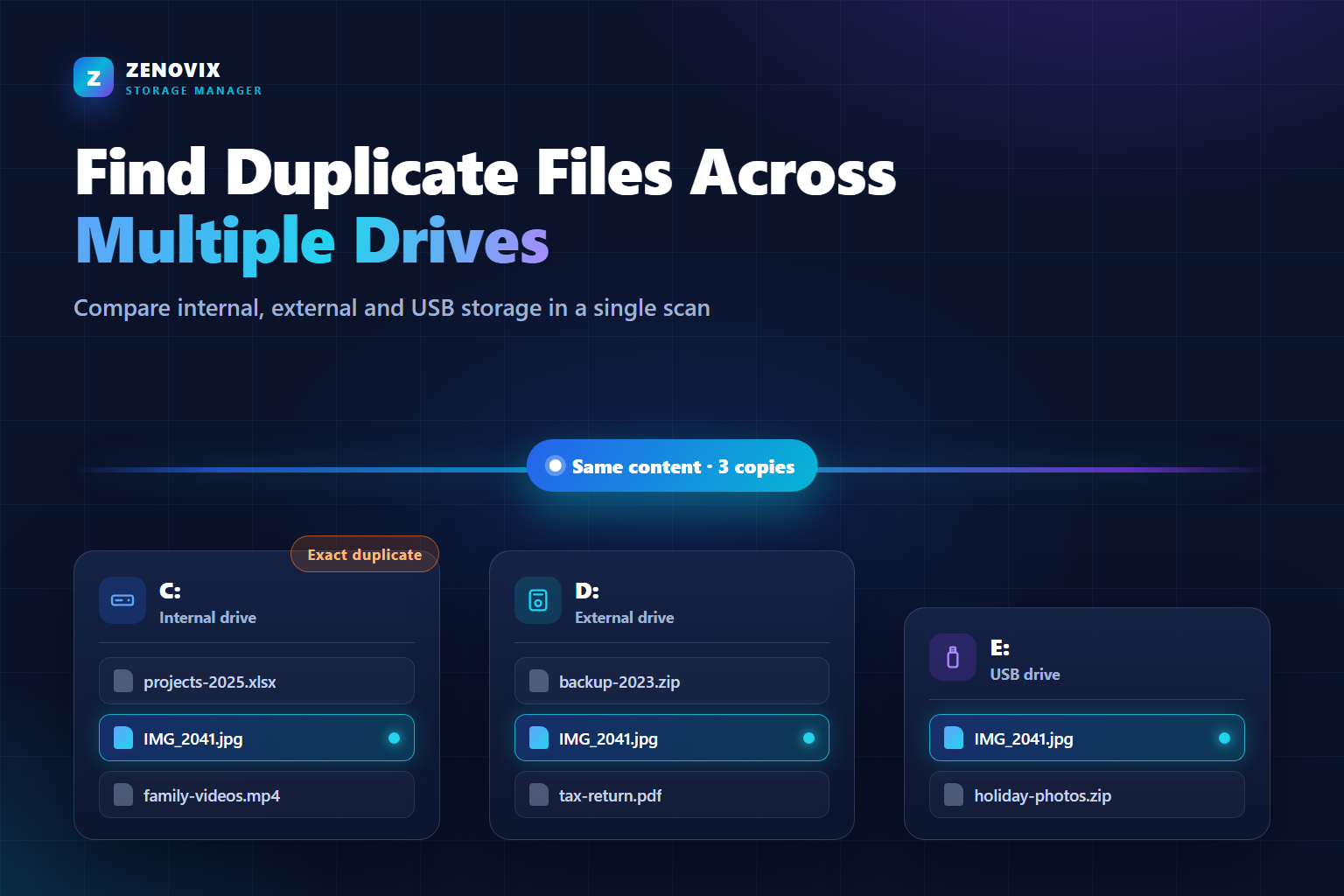
Because both locations are part of one scan, duplicate detection works across all of them at once. A file that exists on C: and again on the external drive lands in the same duplicate group, with every path listed side by side, so the cross-drive overlap you could only guess at becomes an actual list.
You can scope this however you like. Scanning an entire drive gives the full picture but takes longer; scanning the folders where duplicates realistically accumulate, such as photo libraries, Downloads and document folders, gets you most of the value quickly.
The multi-source scan and duplicate review are part of the free edition of Zenovix Storage Manager, so you can see the full extent of the overlap between your drives before deciding anything.
Exact duplicates versus similar files
Once the scan finishes, resist the urge to treat everything flagged as disposable. There is an important line between exact duplicates and similar files, and Zenovix deliberately keeps them in separate reviews.
Exact duplicates are files whose content matches byte for byte. Those are the safe end of the spectrum: when three copies are genuinely identical, keeping one and removing two loses nothing except wasted space.
Similar files are a different animal. The optional fuzzy name and fuzzy content passes surface files that look related: a photo and its edited export, a video and a recompressed copy, two versions of the same report. Those are not interchangeable, and treating them as duplicates is how people lose the good version of something.
Across multiple drives this distinction matters even more, because external drives are exactly where older versions, exports and works-in-progress tend to be parked. Review similar files as versions to compare, not copies to delete.
How to choose which copy should survive
When a duplicate group spans drives, the real decision is not just how many copies to keep but where the surviving copy should live. A few questions settle most cases.
First, which location is the file's real home? A photo inside a curated library on C: outranks a stray copy in a Misc folder on the external drive. Folder context is information; the path column in the duplicate review is there to be read, not skipped.
Second, which drive should hold this kind of file? If the point of the external drive is to hold your archive, it may be the internal copy that goes. If the external copy was a temporary transfer that finished its job years ago, remove that one and keep the organised original.
Third, is one of the copies serving as a backup? Two copies of an irreplaceable file on two physically separate drives is not waste, it is redundancy. Deduplicating your only backup against its source defeats the purpose of having one. Keep deliberate backup copies, and get rid of the accidental scatter instead.
What happens when files are on removable storage
Removable drives add a couple of practical wrinkles that are worth knowing before you start.
The drive needs to stay connected for the whole job. Zenovix scans the locations you selected and later executes the cleanup you reviewed, and both steps need the files to actually be reachable. Unplugging the drive mid-way simply means those files cannot be read or cleaned.
Drive letters are also less permanent than they look. Windows assigns letters as drives connect, so the external drive that is E: today can come back as F: next week, especially with several USB devices in rotation. Content-based matching does not care what the letter is, but your saved results refer to paths, so it is sensible to finish reviewing and acting on a scan while the drive is attached, rather than months later.
Speed is the last wrinkle. Reading every byte of a large USB hard drive through a slow port takes time. Scoping the scan to the folders that matter keeps a cross-drive duplicate check comfortably practical.
Archive uncertain files before deleting them
Cross-drive cleanup produces more "probably, but not certain" decisions than single-drive cleanup, because context is split across locations. The copy on the external drive might be a forgotten transfer, or it might be the only copy of something that matters. When you cannot tell, deleting is the wrong tool.
This is where the archive workflow in Zenovix Pro fits. Instead of deleting an uncertain file, archive it: the file is copied to your chosen archive location, the copy is verified, the original is removed, and the operation is recorded so the Recovery Centre can restore it later.
That turns a nervous decision into a reversible one. The clutter leaves the drive you are trying to reclaim, but the file still exists, and there is a recorded route back if you reach for it in six months.
For the clear-cut cases, the free edition can send reviewed duplicates to the Recycle Bin, which keeps the standard Windows safety net, or delete them permanently when you are sure. Whichever route you use, nothing is touched until you have reviewed the group and chosen it.
FAQ
Can I find duplicate files between my C: drive and an external hard drive?
Yes. Add folders from your C: drive and the external drive to the same Zenovix scan. Duplicate detection then compares file content across every selected location, so copies that exist on both drives appear together in one duplicate group.
Does a duplicate file finder work on USB drives?
Yes, as long as the USB drive is connected and readable it can be scanned like any other folder. Keep the drive plugged in for the whole scan and for the cleanup step, and expect large USB hard drives on slow ports to take longer to read.
Should I delete duplicates that are on my backup disk?
Be careful. If a drive exists specifically to hold backup copies, those duplicates are intentional redundancy, not waste. Deduplicate the accidental copies scattered across your working drives, and leave deliberate backups alone.
What happens if my external drive's letter changes?
Windows can assign a different letter each time drives are connected. Content-based duplicate matching is unaffected, but scan results refer to file paths, so it is best to review and act on a scan while the drive is still attached with the same letter.
Do I need to pay to scan multiple drives?
No. Scanning multiple folders and drives, exact duplicate detection and review are part of the free edition of Zenovix Storage Manager. Pro adds the archive workflow with verified copies, the Recovery Centre, saved scan reviews, CSV export and CLI reporting.
One scan, every drive
Use Zenovix to compare your drives before anything is removed
Zenovix Storage Manager scans the folders and drives you choose, groups exact duplicates by content across all of them, keeps similar files in a separate review, and leaves every keep, archive or delete decision in your hands.