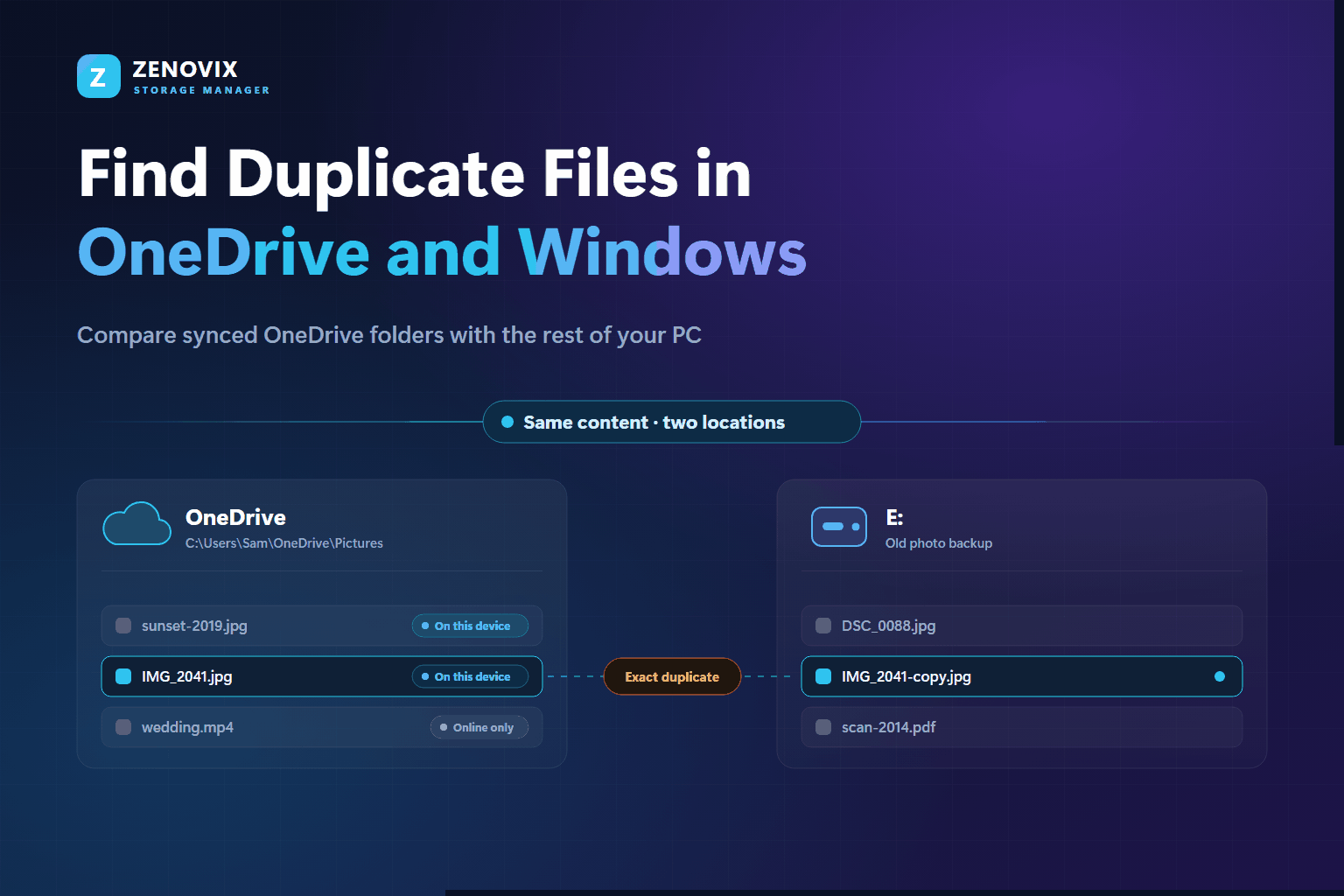
What counts as a duplicate when OneDrive is involved
Start with the distinction that causes most of the trouble. The file at C:\Users\Sam\OneDrive\Pictures\IMG_2041.jpg and the copy you see when you sign in to OneDrive in a browser are not two files. They are one synchronised item with a local representation and a cloud representation. Removing the local one because “it is already in the cloud” does not tidy anything up; it deletes the file from both.
A real duplicate is an independent second copy of the same content, sitting somewhere that is not synchronised to that item:
- C:\Users\Sam\OneDrive\Pictures\IMG_2041.jpg and D:\Photos\IMG_2041.jpg are two independent copies. One of them is genuinely spare.
- C:\Users\Sam\OneDrive\Pictures\IMG_2041.jpg and E:\Old Laptop Backup\Photos\IMG_2041-renamed.jpg are also two copies. The different filename changes nothing about the content.
- C:\Users\Sam\OneDrive\Pictures\IMG_2041.jpg and the same file shown on the OneDrive website are one item. There is nothing here to clean up.
With that settled, the job has a shape:
- Decide which OneDrive folders you actually want to compare.
- Make sure the content in those folders can be read on the PC rather than sitting online-only.
- Add the OneDrive folder and the other folders or drives to the same scan.
- Match on file content rather than filenames.
- Review the duplicate groups that come back.
- Decide which location should hold the copy you keep.
- Archive anything uncertain, and delete only what you are sure about.
Steps two and seven are where OneDrive changes the work, so they get the most attention below.
Why duplicate files collect around OneDrive
OneDrive does not manufacture duplicates on its own. Copies gather around it because it usually arrives partway through a storage history that already contained several versions of everything.
Copying instead of moving is the most common cause. When people first set OneDrive up, the natural instinct is to copy the Pictures or Documents folder into it and check that everything arrived safely. It did, and the originals stayed exactly where they were. The intention was always to delete them later, and later rarely happens.
Camera imports produce the same effect from two directions. A phone photo can reach the PC through the OneDrive camera upload and again through a manual import into the local Pictures folder, so the same shot ends up in both places under different names.
Then there is everything that predates the current machine: a laptop replaced three years ago whose files were dumped into a folder called something like Old-PC, an external drive used as a stopgap when C: filled up, a restored backup that put a second copy of a folder tree next to the first, and content brought over from another cloud service when the subscription moved. Reorganising a photo library after any of those quietly creates renamed copies that no longer look related.
One case does come from sync itself. When the same file is edited on two devices before synchronisation catches up, OneDrive can keep both versions and append a device name to one of them. Microsoft documents that behaviour, and those files are genuine second copies worth reviewing — but they are a specific conflict outcome, not routine duplication.
Does OneDrive have a duplicate file finder?
Not in the sense most people mean when they ask. OneDrive does not provide a general purpose duplicate file scanner for comparing the contents of your OneDrive folders with arbitrary folders and drives on your PC. There is no scan-and-group-duplicates feature in the sync client or on the OneDrive website.
What Microsoft does publish is guidance for particular synchronisation situations: files that gained a device name after a sync conflict, or a folder that ended up added to OneDrive twice. That guidance is useful, and it is worth following when it matches your symptoms, but it is troubleshooting for a known sync problem rather than content analysis across storage locations.
The gap matters because the duplicates that actually fill a drive are cross-location. They sit between OneDrive and an external drive, or between a OneDrive photo folder and the Pictures folder that predates it. Answering that question needs something that can read both locations in one pass and compare them by content, which is where a dedicated duplicate scanner earns its place.
Understand Files On-Demand before you scan
The second thing that makes OneDrive different is that a file appearing in File Explorer does not guarantee the file is on your disk. Files On-Demand lets OneDrive show every item in your storage while keeping the contents in the cloud until something needs them, and File Explorer marks the current state in its Status column.
Online-only files have a name, a size and a date, but their content is not on the PC. They take up almost no disk space, and opening one downloads it. File Explorer shows a blue cloud icon.
Locally available files have been downloaded, usually because you opened them, and can be read from disk right now. Their icon is an outlined tick. Windows can reclaim that space later, at which point they return to being online-only.
Always keep on this device is the pinned state, set from the right-click menu option of that name. These files stay downloaded and are not reclaimed automatically, and File Explorer marks them with a solid tick.
This matters because content-based duplicate detection has to read bytes, and an online-only placeholder has none locally. Only two things can happen: the scan skips the file, or the scan opens it and OneDrive starts downloading — potentially an entire photo library, which is slow, can run through a metered connection, and consumes the local space you were trying to reclaim.
Zenovix Storage Manager takes the conservative route by default. It detects common cloud folders including OneDrive, warns you before scanning them, and skips online-only placeholders rather than triggering downloads. Skipped files are reported instead of hidden: the scan summary shows a Skipped files count broken down into Not downloaded, In use and Other access issues, so you can see exactly how much of a OneDrive folder was left out of the comparison.
If you want that content included, there are two routes. Select the folder in File Explorer, right-click it, choose Always keep on this device and let synchronisation finish; or turn on Force download cloud files in Zenovix Settings, which allows a scan to open online-only placeholders so OneDrive downloads them. The first gives you more control over what comes down and when. The second is convenient when you already know the folder is small enough to bring across. The Zenovix manual covers both settings in more detail.
How to find duplicate files between OneDrive and your PC
Once the content is readable, comparing OneDrive with the rest of the PC is the same job as comparing any two folders. The one thing that cannot be skipped is putting both locations in a single scan, because duplicate detection can only group files it has looked at together.
- Open Zenovix Storage Manager. On the Scan setup screen, use Add folder to select the synced OneDrive folder you want to compare — the whole C:\Users\<you>\OneDrive tree, or just OneDrive\Pictures if photographs are the problem.
- Use Add folder again for everything you want to compare it against: an old D:\Photos folder, an external drive, the Pictures folder that predates OneDrive. Every source you add becomes part of the same scan.
- Decide how cloud-only files should be handled before you start. Leave Force download cloud files off in Settings if you do not want the scan pulling content onto the device.
- Run a full analysis scan rather than the quick storage overview. The fast mode is built for storage usage, file types, large files and empty folders, and deliberately does not build duplicate groups.
- Leave exact matching as it comes: Match by SHA-256 hash with Require same file size. That is the default in Simple Mode and the most conservative way to identify duplicates.
- Choose Start scan, then read the scan summary when it finishes — including the Skipped files breakdown. A large Not downloaded figure means part of the OneDrive folder was never compared.
- Move into duplicate review: Check duplicates in Simple Mode, or Exact Duplicates in Advanced Mode. Each group lists every path holding that exact content, so a OneDrive path and a D:\ path appearing in the same group is your answer.
- Mark each file Keep or Clean up. Nothing on disk changes until you run the final cleanup step, and that step names the method it is about to use.
Scanning several sources, exact duplicate detection and the review workbench are all part of the free edition, so you can see the full extent of the overlap between OneDrive and everywhere else before deciding whether you need anything more. If your copies are spread across several external drives as well, the same approach scales: comparing multiple drives in one scan works the same way.
Why filenames are not enough
Sorting both folders by name and looking for overlap is the obvious shortcut. It fails in both directions.
Identical content often carries different names. Holiday.jpg, Holiday Copy.jpg and IMG_1837.jpg can be byte-for-byte the same picture: Windows appends “Copy” when you paste into the same folder, photo applications re-export with their own naming scheme, and a migration script may have renamed a whole library at once. A filename search will never connect those three.
Different content often carries the same name. Two files called invoice.pdf can be entirely unrelated invoices, and every camera ever made has produced an IMG_0001.jpg. Matching by name would cheerfully pair a wedding photo with a screenshot.
Zenovix identifies exact duplicates by content instead. Match by SHA-256 hash computes a hash of what is inside each file, and Require same file size keeps the comparison conservative by only considering files of identical length. Two files are grouped together when their content matches, whatever they are called and wherever they live, which is what makes a renamed copy on an old drive findable at all.
Be precise about what that proves, though. Matching content means the files are identical and nothing more. It does not tell you which copy is the original, which one another application depends on, or which one belongs in your library. That judgement stays with you.
Exact duplicates and similar photos are different problems
Photographs generate most of the duplicate anxiety around OneDrive, and they are also where the difference between identical and similar matters most.
An exact duplicate is identical content. When three copies of a picture are genuinely the same file, keeping one and removing two costs nothing but the wasted space.
A similar photo is a different file. It might be the same scene taken a second later, the same picture resized for sharing, an edited export, a re-compressed copy, a crop, or the same image carrying different metadata after passing through an app. Those files have different content, so exact matching will not group them — and it should not, because they are not interchangeable.
Zenovix keeps the two apart deliberately. Exact duplicate review is the high-confidence path. Fuzzy matching, an Advanced Mode area, is where similar files appear, and fuzzy content matching can compare images, videos, audio, documents, PDFs and archives. Those groups are lower confidence by design, so they get their own review screen with previews and slower decisions. The reasoning behind that separation is worth reading in this account of a photo cleanup that nearly went wrong.
For a OneDrive photo library the practical rule is simple: treat exact duplicate groups as a storage task and similar-photo groups as a curation task. The second one is about which version you actually want, and it deserves more attention per file.
Choosing which copy to keep
Finding the groups is the mechanical part. Deciding which path keeps the file is the part software should not do for you, and with OneDrive in the picture the decision gains an extra dimension: is OneDrive meant to be the main home for this kind of file, or is it a working area?
A few questions settle most groups.
- Which location is organised? A photo inside a curated OneDrive\Pictures\2019\Italy folder outranks a loose copy in E:\Misc. Folder context is information, and the path column in the review is there to be read.
- Do you want this file synchronised? Keeping the OneDrive copy means it stays available on your other devices and continues to use OneDrive storage. Keeping the local copy means neither.
- Is the other copy a deliberate backup? Two copies on physically separate storage is redundancy, not waste. Deduplicating a backup against its source defeats the purpose of having one.
- Does anything depend on the path? Photo libraries, project files, saved games and scripts can reference a specific location, and moving the file breaks them quietly.
- What do the dates say? Modification dates and folder structure usually reveal which copy was the working one and which was the transfer.
Resist the automatic rules. Newest is not always best, because a re-saved or re-exported copy can be both newer and worse. Oldest is not always best either. The OneDrive copy should not win by default, and neither should the local one. Keep rules such as Keep newest or Keep shortest path are genuinely useful for marking large numbers of obviously interchangeable groups consistently, but check what is in the visible review set before applying one across it.
What happens when you delete a duplicate from OneDrive
Deleting a file from a synchronised OneDrive folder is not a local action. The deletion synchronises too, which normally removes the file from your OneDrive storage and from every other device signed in to the same account.
This is the single most important thing to understand before acting on a duplicate group that contains a OneDrive path. The Windows Recycle Bin on this PC is not the whole safety net, because the file is also leaving the other places it was available.
OneDrive does keep deleted items in its own recycle bin, and they can be restored from there, but the retention period depends on the type of account and how it is administered. Check Microsoft's current documentation for your account rather than relying on a number you read somewhere, and treat that window as a chance to correct a mistake you notice quickly rather than as a backup.
The practical consequence is a small asymmetry worth holding on to. When a duplicate group contains one OneDrive path and one local path, removing the local copy is the contained decision and removing the OneDrive copy is the one that travels. That does not mean the OneDrive copy should always survive — sometimes it is the accidental one — it means being more deliberate about that side of the group. The complete guide to cleaning up Windows storage safely covers how the other sync clients behave in the same situation.
Zenovix never removes anything on its own. Files are acted on only after you have marked them, filters change what you are looking at rather than what will be deleted, and the final cleanup action names the method it will run before it runs it.
The safer option: archive before you delete
Cleaning up across locations produces more genuinely uncertain cases than tidying a single folder, because the context for each copy is split between places you set up years apart. When you cannot tell whether a copy still matters, deletion is the wrong tool.
Archive is the alternative in Zenovix Pro. The reviewed file is copied into an archive location you choose, the copy is verified, the original is removed, and a manifest-backed recovery record is written. Deep verification runs automatically before archive operations, so only current files are processed. Afterwards the Recovery Centre can preview the archive and restore individual files or a whole archive job, either to their original paths or to a folder you pick.
That turns a permanent decision into a reversible one. The space comes back from the drive under pressure, the file still exists, and there is a recorded route to it if you reach for it in six months.
One OneDrive-specific point is worth thinking through. Archiving a file out of a synchronised OneDrive folder removes it from that folder, and that removal synchronises like any other deletion. The file is safe in your archive with a recovery record, but it stops being available on your other devices until you restore it. If a file needs to stay reachable everywhere, keeping it in OneDrive is precisely the point — archive the copy that lives somewhere else instead.
For clear-cut cases the free edition can send reviewed files to the Recycle Bin, which keeps the standard Windows safety net, or delete them permanently. Permanent deletion creates no Zenovix recovery record and should be treated as final.
A worked example: OneDrive Pictures and an old photo drive
Here is the situation in its usual form. C:\Users\Sam\OneDrive\Pictures holds everything since about 2020. E:\Old Photos is what came off a laptop that was replaced years ago. Nobody can remember whether that old library was migrated into OneDrive, partly migrated, or never touched, and the drive cannot be reused until somebody finds out.
Preparation comes first. In File Explorer, look at the Status column on the OneDrive Pictures folder. If most of it is online-only, right-click the folder, choose Always keep on this device and wait for synchronisation to finish — or plan to enable Force download cloud files instead. Either way, know that the content is readable before you scan, because otherwise the answer you get is a comparison of half a library.
Then add both C:\Users\Sam\OneDrive\Pictures and E:\Old Photos to one scan with exact matching enabled, and run it. When it finishes, read the Skipped files line before anything else. Not downloaded should be zero or close to it; if it is not, the comparison is incomplete and worth repeating.
Now the results are readable. Duplicate groups containing one path from each location are photos that did make it across, and content matching finds them even though the migration renamed files, flattened 2014-Italy into a year folder, or re-exported everything through an application. Files on E: that appear in no group at all are the ones that were never brought over — and that list, rather than the duplicate list, is the interesting one, because those are the photos that would disappear if somebody formatted the drive.
The safe order follows from that. Deal with the unique files first by copying them into OneDrive so they are covered by synchronisation. Only then decide about the duplicates, at which point the copies on E: really are redundant and archiving or removing them is a small decision rather than a nervous one.
Final recommendations
Most of what makes OneDrive duplicates awkward comes down to seven habits.
- The local OneDrive folder and its cloud copy are one synchronised item, not two duplicates.
- Make the OneDrive content you intend to compare readable on the PC first, and check the Skipped files count afterwards.
- Compare file contents, not filenames.
- Keep exact duplicates and similar photographs in separate reviews.
- Read the paths and decide where the surviving copy belongs, rather than letting a keep rule decide for you.
- Remember that deleting from a synchronised folder removes the file from OneDrive and from your other devices.
- Archive anything you are unsure about instead of deleting it.
None of this requires a long session. Comparing one OneDrive folder against one old drive is usually an afternoon's work, and it replaces a vague suspicion that there is duplication somewhere with a list you can actually act on.
FAQ
Does OneDrive have a duplicate file finder?
OneDrive does not provide a general purpose duplicate file scanner for comparing the contents of your OneDrive folders with arbitrary folders and drives on your PC. Microsoft publishes guidance for specific sync situations, such as files that gained a device name after a conflict, but comparing OneDrive with other storage locations by content needs a dedicated duplicate scanner.
Can I find duplicate files between OneDrive and my hard drive?
Yes. Add your synced OneDrive folder and the other folder or drive to the same Zenovix scan. Exact duplicate detection then compares file content across every selected location, so a copy that exists in OneDrive and again on a local or external drive appears in one duplicate group with both paths listed.
Can Zenovix scan OneDrive?
Yes. A synced OneDrive folder is scanned like any other folder, and results are best when the files are available locally. Zenovix detects common cloud folders, warns before scanning them, and skips online-only placeholders by default so a scan does not silently download your cloud library.
What happens to online-only files during a duplicate scan?
By default they are skipped rather than downloaded, and reported in the scan summary under Skipped files as Not downloaded. To include them, either mark the folder as Always keep on this device in File Explorer and let sync finish, or enable Force download cloud files in Zenovix Settings so the scan opens the placeholders and OneDrive downloads them.
Can two files with different names still be exact duplicates?
Yes. Filenames are not part of the content, so Holiday.jpg, Holiday Copy.jpg and IMG_1837.jpg can be byte-for-byte identical. Exact matching by SHA-256 hash, with the same file size required, groups files by what is inside them, which is why renamed copies on an old drive can still be matched to the original.
What happens if I delete a duplicate from my OneDrive folder?
The deletion synchronises. The file is normally removed from your OneDrive storage and from every other device signed in to the same account, not just from this PC. OneDrive keeps deleted items in its own recycle bin for a period that depends on your account type, but that should be treated as a chance to correct a quick mistake rather than as a backup.
How can I find duplicate photos in OneDrive?
Scan the OneDrive picture folder together with your other photo locations and review the exact duplicate groups first, since those are identical files. Similar photos, such as edited exports, crops or resized copies, have different content and appear in the separate fuzzy matching review, where they should be compared as versions rather than treated as spare copies.
Compare cloud and local in one scan
Use Zenovix to check OneDrive against the rest of your PC
Zenovix Storage Manager scans the folders you choose, groups exact duplicates by file content across all of them, reports which cloud files were skipped, and keeps every keep, archive or delete decision in your hands.